PDF Floor Plan to 3D: A Practical Page-by-Page Workflow
A PDF floor plan is a useful source for a 3D preview, but the file extension does not tell you how much drawing information it contains. Some PDFs contain…
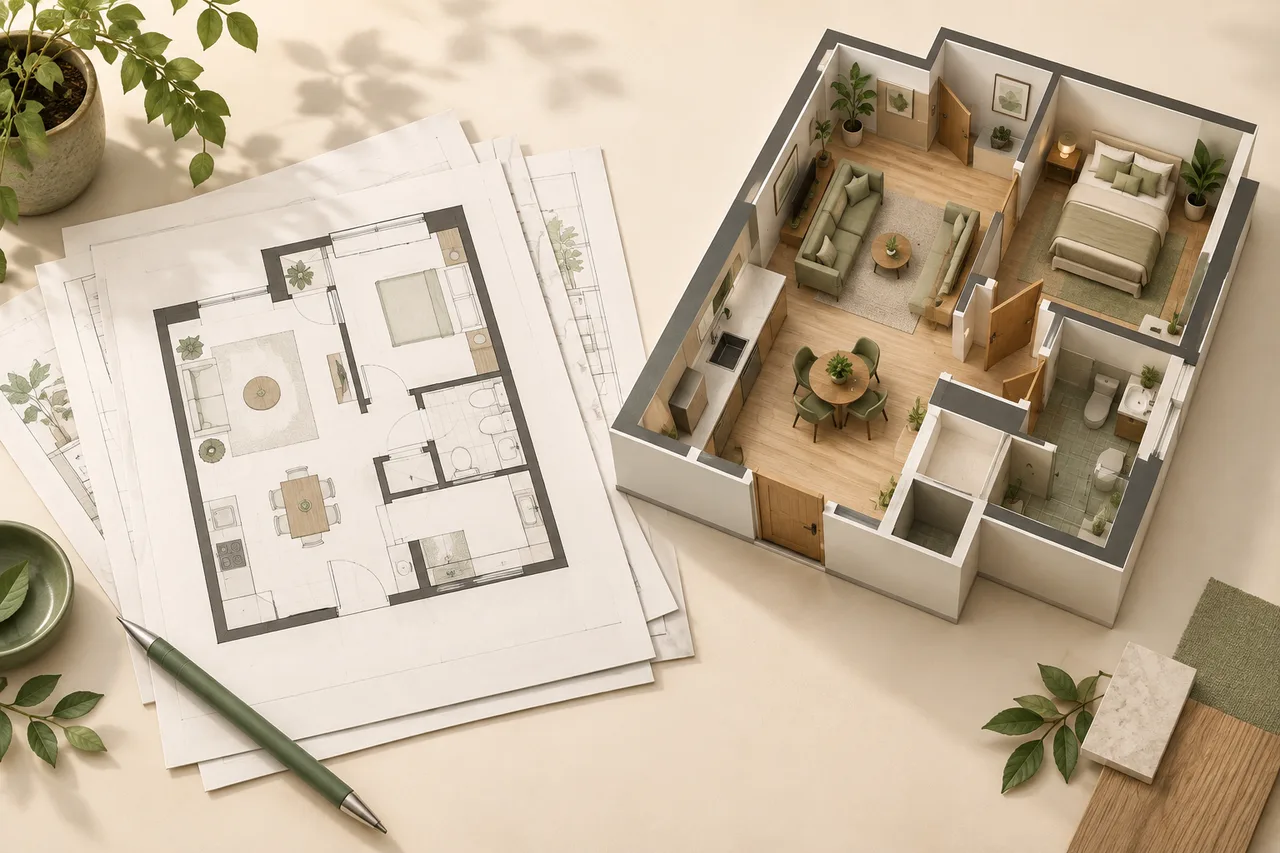
A PDF floor plan is a useful source for a 3D preview, but the file extension does not tell you how much drawing information it contains. Some PDFs contain sharp vector lines. Others contain only a scanned photograph of a page. The conversion workflow must still identify walls from the selected page image.
3D House Maker accepts a PDF upload and processes a selected page. It extracts likely wall polygons rather than importing a complete architectural model from the document.
Find the floor-plan page
Open the PDF and note the page number shown by the document viewer. Check the actual page position, not only a drawing-sheet number printed in the title block. A cover sheet can make those two numbers different.
Choose the level you need. A roof plan, reflected ceiling plan, or elevation is not a substitute for the floor plan. If a page contains several floors, prepare a separate image of the relevant floor so the footprints are not interpreted together.
Check whether the page is a scan
Zoom in on a wall edge. Smooth lines that stay sharp often indicate vector content; square pixels and paper texture suggest a raster scan. This is a useful visual clue, not a definitive inspection of the PDF's internal structure.
For a scanned plan, start with straightening and contrast checks. For a vector source, exporting a wall-focused image from the original drawing application can help if the PDF includes dense furniture and annotations. The current converter processes page imagery, so editable CAD layers are not automatically preserved.
Upload the correct page
Open the converter, enter the page number, and upload the PDF. The maximum upload size is 15 MB. If your file is larger, create a copy containing only the required page or export that page as a clear PNG. Keep the original file for reference.
Password-protected, damaged, or unusual PDFs may fail to render. A clear image export is a practical fallback when you can open the document in a trusted viewer. Do not remove protection from documents you do not have permission to use.
Review the rasterized drawing
Inspect the source preview after upload. Look for thin walls that became too light, heavy notes that overlap the footprint, and clipped page edges. A successful upload only means the file could be processed; it does not establish that every wall was recognized.
Compare the 2D overlay and the 3D walls. If furniture became extruded geometry, prepare a cleaner copy rather than assuming the model is showing real partitions. Doors and windows are not currently reconstructed as complete building components.
Establish scale independently
A printed scale such as 1:100 depends on the intended print size. Resizing a PDF view or exporting an image can break a ruler-based reading from the screen. Prefer a known dimension written on the drawing or a verified site measurement.
For example, a labelled room width of 4.2 metres is a reference only when you can identify the exact two points it spans. Do not substitute the outer wall width if the annotation measures between internal wall faces.
Save a traceable result
Keep the PDF, page number, prepared image if used, and scale assumption together. Review warnings before sharing the 3D preview. A converted wall model is useful for exploring spatial relationships, but it does not replace the source documents or a professional review for building work.
If the original is a scan, continue with cleaning up a scanned floor plan.