Cleaning Up a Scanned Floor Plan Before Modeling
A scanned floor plan can contain useful geometry mixed with paper texture, stains, faded ink, and small rotations. Cleaning it up means making the real wall…
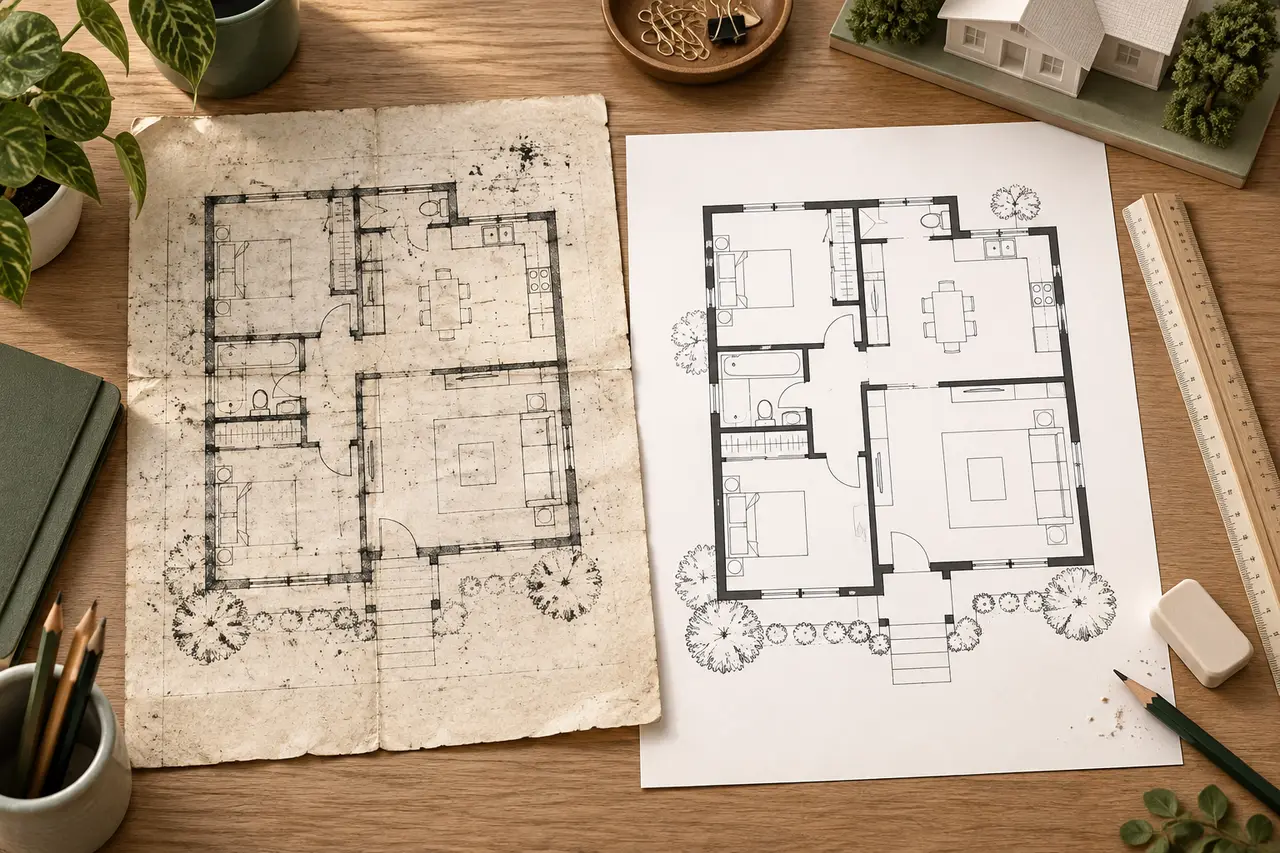
A scanned floor plan can contain useful geometry mixed with paper texture, stains, faded ink, and small rotations. Cleaning it up means making the real wall boundaries easier to distinguish while preserving the gaps and relationships in the original drawing.
Keep the untouched scan. Every edit should be reversible, and the final 3D preview should still be compared against that reference. The illustration on this page is conceptual, not evidence of a particular scan's conversion accuracy.
Straighten before repairing
Use a long wall or a drawing border as a reference for deskewing. Rotate the working copy until that reference is level. Do not assume every wall should be horizontal or vertical: an intentionally angled wing should stay angled.
For a camera photograph, rotation alone may not fix perspective. A page photographed from one side can have different apparent scales at opposite edges. Correct the page perspective in an image editor when the corners are known, or make a new straight-on capture if practical.
Crop to the useful drawing
Remove page edges, scanner-bed shadows, and unrelated sheets. Leave all exterior walls visible. Check that the crop has not removed a heavy outer line or the end of a diagonal wall.
Separate multiple floor plans into individual files. A stair detail or wall section placed next to the main plan can otherwise become an unrelated group of tall shapes in the preview.
Adjust contrast in small steps
Brighten the background enough to separate it from the ink. Then inspect thin internal walls before increasing contrast further. Over-aggressive black-and-white thresholding can erase faded partitions and close narrow doorway gaps.
Compare three areas after each adjustment: the faintest wall, the thickest wall, and a small opening. If one improves while another loses detail, use a gentler adjustment or repair a limited area rather than applying a stronger global filter.
Remove noise selectively
Dust speckles away from the footprint are often easier to remove than marks touching walls. Avoid broad blur filters that soften every edge. Do not erase a handwritten note if its strokes overlap an important boundary without checking the original beneath it.
Where a line is genuinely missing, do not invent a wall from a guess. A repair should follow visible evidence in the source or another verified drawing. If the boundary remains uncertain, record that uncertainty when sharing the preview.
Make a controlled comparison
Save the cleaned copy under a new name. Compare it with the original at the same zoom. Confirm that corners, openings, and wall thickness relationships remain recognizable. One useful test is to convert both versions and compare the detected polygons in 2D, rather than deciding only from which 3D rendering looks more attractive.
The current 3D House Maker extraction is best suited to clear, mostly orthogonal plans. Cleanup can reduce clutter, but it cannot guarantee that curved walls, symbols, or faint boundaries will be interpreted correctly.
Keep a small record of edits
Note the crop, rotation, contrast adjustment, and any manual repairs. Keep a known measurement separately from the image resolution. A cleaned scan can look precise even when its scale is unknown.
After upload, inspect missing walls, false partitions, and closed openings. If the result is uncertain, use the preview to identify what needs a clearer drawing rather than treating it as a finished architectural model. Continue with the conversion review workflow.