Image to DXF Converter
Turn visible wall regions in a JPG, PNG or PDF floor plan into an open ASCII DXF that can be reviewed in many CAD applications. Upload the plan, confirm the…
Start with the tool ↓Floor plan to 3D
 2D → 3D
See what’s on the other side
of your floor plan.
Upload a plan to bring its walls into 3D,
or take the sample for a spin.
From your actual plan
Wall geometry extracted from the image.
A space you can explore
Orbit, zoom and inspect every angle.
Your ideas stay yours
Private server processing. No paid AI services.
Create a DXF from visible wall regions
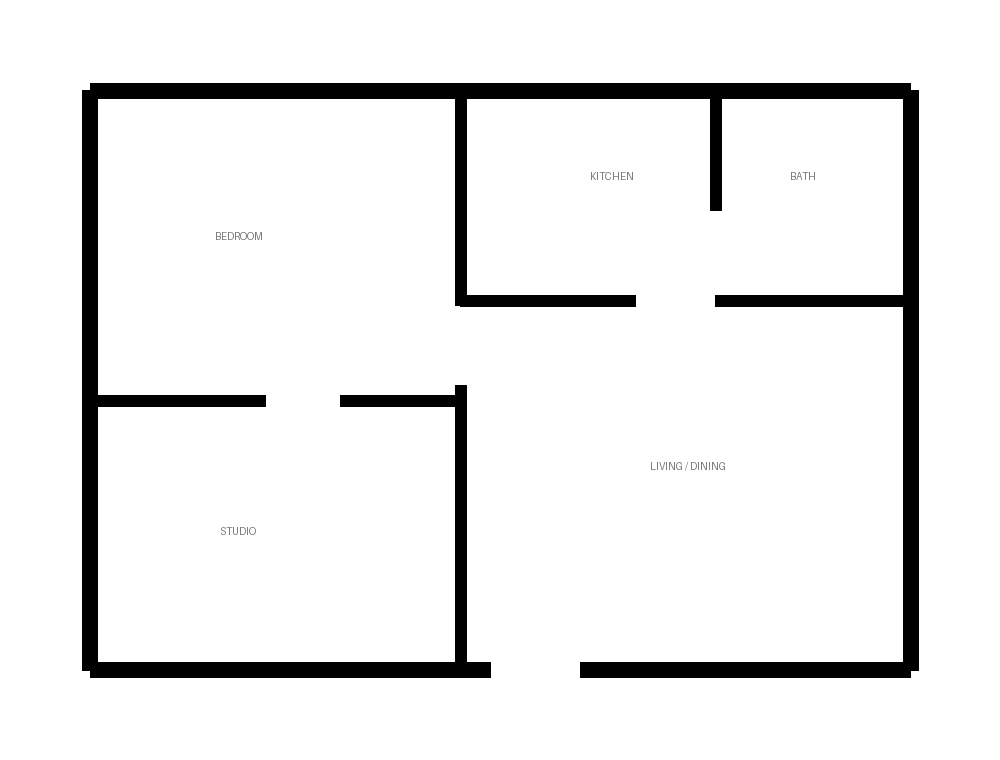
The image-to-DXF workflow detects likely walls in a JPG, PNG or PDF floor plan and exports the detected geometry as open ASCII DXF. It is a useful starting point for CAD review when you have a raster drawing and need to inspect its wall outlines.
The output is detected wall geometry, not a complete semantic CAD reconstruction. Dimensions, labels, furniture, doors and windows are not automatically recreated as their original CAD objects. Keep the source image beside the result so a reviewer can distinguish a detected outline from an intentional architectural element.
Upload one readable floor
Use a file no larger than 15 MB; hosted image processing is limited to 12 megapixels. Select the intended PDF page before starting. Crop unrelated notes and title blocks from a copy, preserving the outside walls and the measurement reference.
Dark wall boundaries on a light background are easier to review. Removing obvious heavy furniture outlines can reduce false wall regions. A blurry plan does not recover detail when its extension is changed from JPG to PNG.
Calibrate before exporting
Suppose the longest edge of the cropped image corresponds to 12 verified metres of the plan. Set the span to 12 metres only if the image boundaries and that measurement actually match. White margins are part of the image edge and affect this setting.
If the only known length is a 4-metre room, relate its pixel distance to the entire image before entering the span. Keep wall height separate from footprint scale: changing height cannot repair a wrong horizontal measurement. When the source dimension is uncertain, label the export as approximate.
Check the DXF in CAD
Review the detected 2D outlines before downloading. Look for missing walls, enclosed furniture regions and gaps that have merged. After export, open the DXF in your CAD software and compare at least one known length and a recognizable corner with the original plan.
Do not assume the receiving CAD application's default units match the source workflow. Verify the size of the imported geometry using a known reference, then correct units or scale deliberately if needed. Retain the original and the reviewed export as separate revisions.
Choose the next step
Use the DXF viewer for an additional linework check, and follow the upload preparation checklist. If the result contains incorrect detected walls, review the conversion and improve the source. This tool produces DXF; a native DWG file requires a separate CAD save step.
Put your next idea on the plan.
Start with a measured input and keep a copy of your project.
Open tool