Image to DWG Workflow
DWG is a proprietary CAD format, so this free browser tool does not pretend to generate a native DWG file. It prepares detected wall geometry as open ASCII…
Start with the tool ↓Floor plan to 3D
 2D → 3D
See what’s on the other side
of your floor plan.
Upload a plan to bring its walls into 3D,
or take the sample for a spin.
From your actual plan
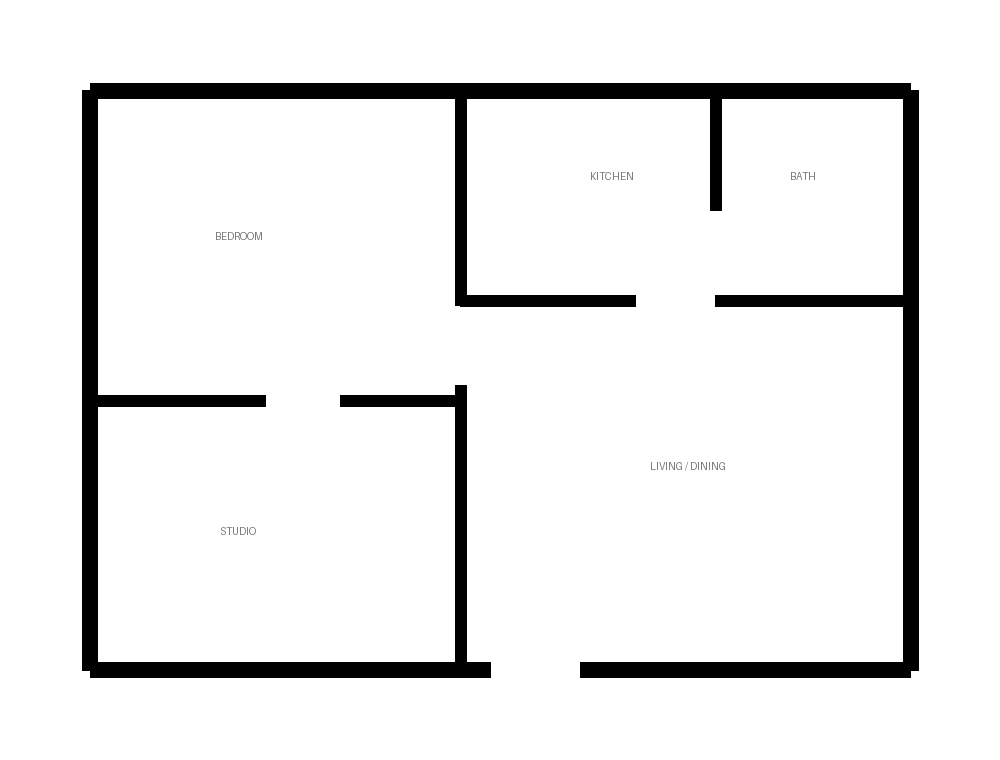
Wall geometry extracted from the image.
A space you can explore
Orbit, zoom and inspect every angle.
Your ideas stay yours
Private server processing. No paid AI services.
A practical image-to-DWG workflow
DWG is a proprietary CAD format. This browser tool prepares detected wall geometry as open DXF; it does not generate a native DWG file. To obtain DWG, open the reviewed DXF in CAD software that supports saving that format and complete the save there.
This distinction matters before you upload: the intermediate result contains wall outlines detected from an image, rather than every original room, dimension, annotation and architectural object. If your project requires a complete editable CAD drawing, plan for manual checking and redrawing.
Step 1: prepare one clear source
Upload JPG, PNG or PDF up to 15 MB. Hosted images are limited to 12 megapixels. For PDF, choose the page that contains the intended floor. Keep an untouched original and prepare a cropped working copy without unrelated title blocks or overlapping furniture symbols.
Use one layout and one floor per conversion. A photograph taken at an angle can distort measurements; straighten or replace it before treating the output as a scaled starting point.
Step 2: review and export DXF
Compare the detected 2D wall geometry with the source. Check major boundaries and areas where doors, text or furniture meet wall lines. Set scale from a verified reference; the plan span refers to the longest image edge, including margins. Height is a separate viewing parameter.
For example, if the complete cropped drawing spans 10 metres across its longest edge, use a 10-metre span. If 10 metres measures only a portion of that image, calculate the full span first. Do not substitute a room length for an image-wide measurement.
Download DXF after reviewing the geometry. Keep the source image, reference measurement and any extraction warnings with the export so another person can understand what was assumed.
Step 3: save the reviewed drawing as DWG
Open the DXF in compatible CAD software. Verify its units and one known distance, inspect the exterior boundary and repair incorrect or missing geometry. Add the annotations and objects your project needs. Save a separate DWG revision using the supported CAD command.
Renaming a .dxf file to .dwg does not perform this conversion. Likewise, saving as DWG does not prove that the detected walls are accurate or that the drawing meets construction requirements.
Start with the image-to-DXF tool, inspect supported linework in the DXF viewer, and read why an attractive view is not a complete model.
Put your next idea on the plan.
Start with a measured input and keep a copy of your project.
Open tool