Floor Plan to 3D Converter
A flat drawing shows where rooms sit. A three-dimensional wall preview makes their relationships easier to explore. Start with a clear plan, inspect what…
Start with the tool ↓Floor plan to 3D
 2D → 3D
See what’s on the other side
of your floor plan.
Upload a plan to bring its walls into 3D,
or take the sample for a spin.
From your actual plan
Wall geometry extracted from the image.
A space you can explore
Orbit, zoom and inspect every angle.
Your ideas stay yours
Private server processing. No paid AI services.
A clearer way to read your floor plan.
A flat drawing shows where rooms sit. A three-dimensional wall preview makes their relationships easier to explore. Start with a clear plan, inspect what the converter detected, and set your measurements deliberately.

Explore the layout from more than one angle.
Rotate the preview to examine room boundaries, long corridors, and internal partitions. A view from above helps you compare the model with the original drawing; an angled view makes the wall height easier to understand.
The most useful review moves between 2D and 3D. If an unexpected shape appears, find the matching area in the source image before deciding whether it belongs in the model.
Convert, compare, then refine.
Spend a little time checking the input and output. A successful upload is only the beginning of a useful preview.
Prepare one clear floor
Choose a readable plan with the entire outside boundary visible. Remove unrelated page borders and diagrams from a working copy. For multi-page PDFs, select the correct floor-plan page. Keep your original document unchanged.
Inspect the detected walls
Upload the file and wait for processing. Compare the 2D overlay with the source, especially at doors, thin partitions, and furniture outlines. Missing or extra walls are a reason to revisit the input.
Check scale and save the data
Set wall height and the image span using known measurements where available. Rotate the model, review the warnings, and download the geometry JSON if you want to keep the detected polygons.

Make the walls easy to distinguish.
The current converter works best with clear, mostly orthogonal plans. Crisp wall edges on a light background help separate the footprint from notes and decorative elements.
Keep thin walls and doorway gaps visible.
Crop title blocks without clipping exterior walls.
Hide furniture layers when your drawing software allows it.
Avoid shadows, tilted photographs and heavily compressed screenshots.
Upload one floor rather than several footprints on one page.
A larger file is not automatically better. Check the difficult areas at a useful zoom and stay within the 15 MB upload limit.
Scale and height are two different controls.
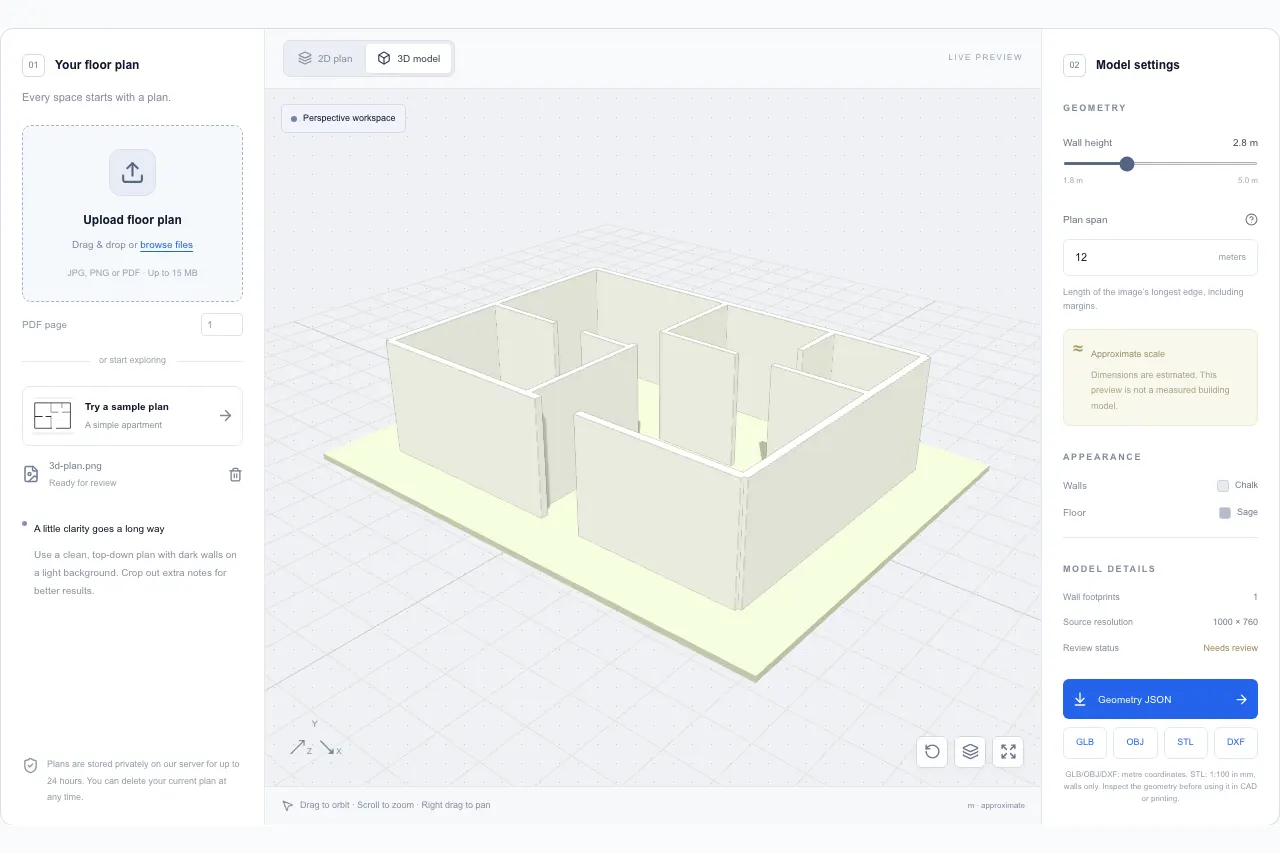
Imagine a cropped plan whose longest image edge represents a verified 12-metre span. Setting that span to 12 metres gives the footprint a meaningful reference. Setting wall height to 2.8 metres then controls how far those footprints extend upward.
If the image includes margins beyond that 12-metre boundary, the same value will produce a different scale. Crop carefully or calculate the distance represented by the complete image edge. If you cannot verify a dimension, describe the preview as unscaled.
Illustrative values only. Enter dimensions from your own project.
Useful for early conversations and careful reviews.
Home layout discussions
See how rooms connect and identify corners that deserve a closer look. Keep a list of uncertain measurements instead of letting an attractive preview make those decisions for you.
Drawing preparation
Use unexpected model shapes to find clutter, weak lines, and ambiguous boundaries in the upload. Compare revisions against the original rather than judging them by appearance alone.
Geometry exploration
Inspect the detected polygons and download the JSON data for further work. Review the extracted walls before using that data in another workflow.
This is experimental wall extraction, not structural analysis or a complete building model. Furniture, openings, roofs, and materials are not automatically reconstructed. Always compare the output with the drawing and your verified measurements.
Floor plan to 3D: practical answers.
What does this floor-plan-to-3D tool create?+
It creates an interactive preview by detecting likely wall polygons in a 2D image and extruding them vertically. You can inspect the footprint, rotate the view, and adjust the assumed wall height. It does not currently reconstruct complete furnished rooms, roofs, doors, or windows.
Can I upload a PDF floor plan?+
Yes. Choose the page number before uploading your PDF. JPG and PNG are also supported. The upload limit is 15 MB. If a page contains several separate floors, prepare a copy containing the floor you want to preview.
Is the resulting model automatically to scale?+
No. An image alone does not establish real-world dimensions. The span control sets the distance represented by the longest image edge. Check that distance against a known measurement, including any image margins, before interpreting sizes. Wall height is a separate assumption.
Why did a piece of furniture become a wall?+
The current image-processing workflow searches for wall-like shapes rather than understanding every architectural symbol. Heavy furniture outlines, notes, and hatching can be included. Use the 2D overlay to compare the detected footprint with the source, and try a cleaner wall-focused image.
What can I download?+
Download detected geometry as JSON, or export the wall meshes as GLB, OBJ or STL. GLB and OBJ use metre coordinates. STL is prepared at 1:100 with millimetre coordinates. These exports contain walls only; inspect scale and mesh quality before using them in another application.
What if my browser cannot run WebGL?+
The viewer can use an SVG compatibility mode when a WebGL context is unavailable. A notice identifies that mode. You can still inspect the wall model, although appearance and performance can differ from the hardware-accelerated view.
How are uploaded plans handled?+
On the hosted preview, files are processed on the application server and retained temporarily for up to 24 hours. Each project uses a separate access key. Use the delete control to remove your project earlier. Keep your own copy of any source or exported result you need.
Can I use the model to decide which wall to remove?+
Use it to discuss spatial relationships and prepare questions. Automatic image extraction does not identify load-bearing walls, services, structural details, or local building requirements. A visually plausible wall model does not validate a renovation decision.
See what your floor plan looks like in three dimensions.
Upload a clear file, inspect the detected walls, and explore the layout at your own pace.
A real example from this tool
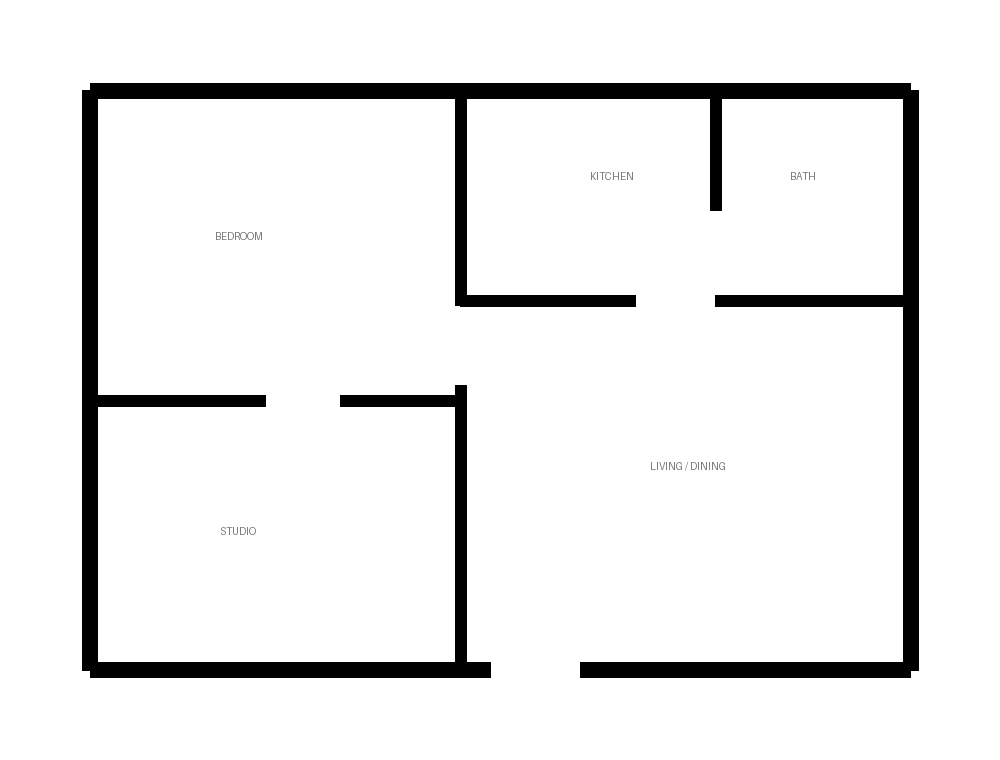
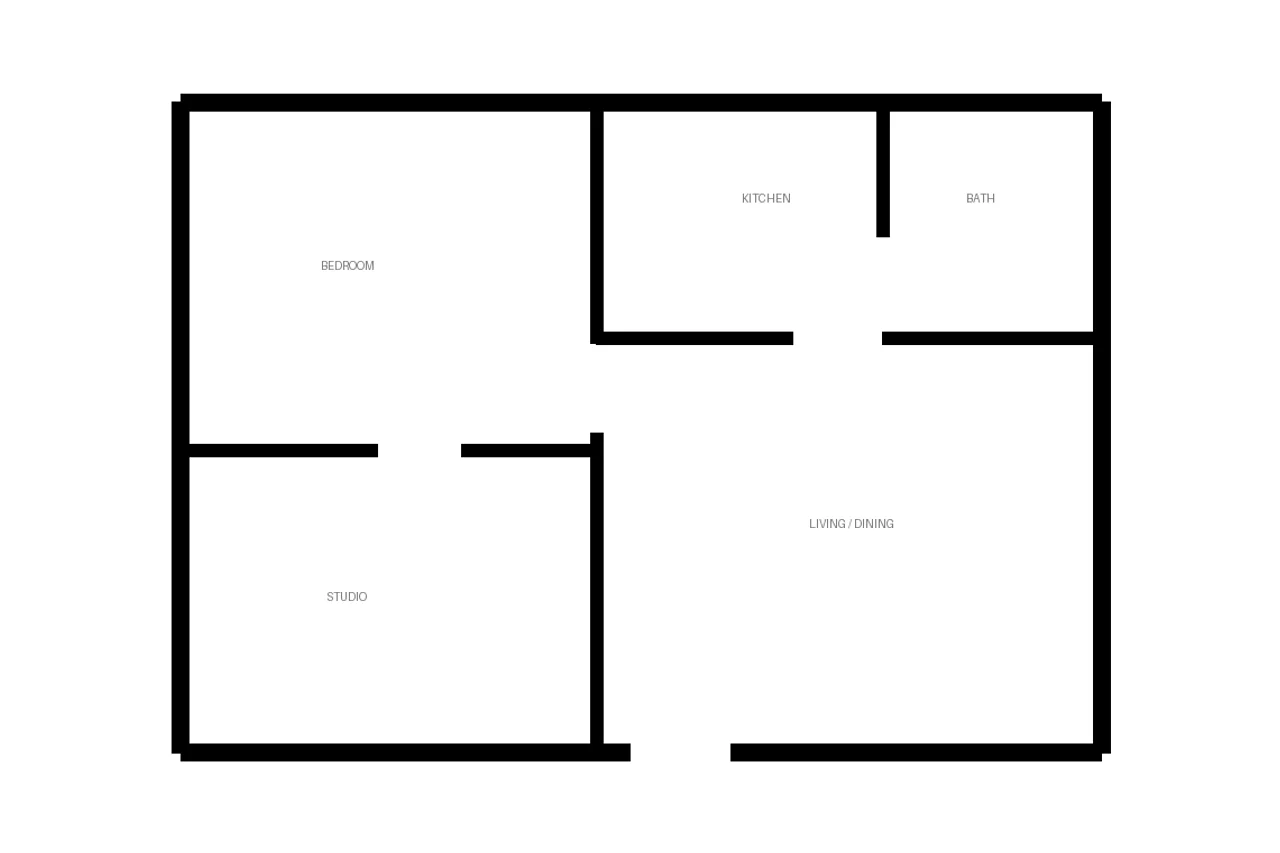
The built-in sample below was uploaded and processed in this tool. The 12 m plan span and 2.8 m wall height are demonstration settings, not verified building measurements. Compare the source lines with the detected wall preview.
Put your next idea on the plan.
Start with a measured input and keep a copy of your project.
Open tool