Sketch to Floor Plan
A hand sketch can be a useful starting point when it shows the room boundary clearly. Upload a JPG, PNG or PDF, review the detected wall shapes beside the…
Start with the tool ↓Floor plan to 3D
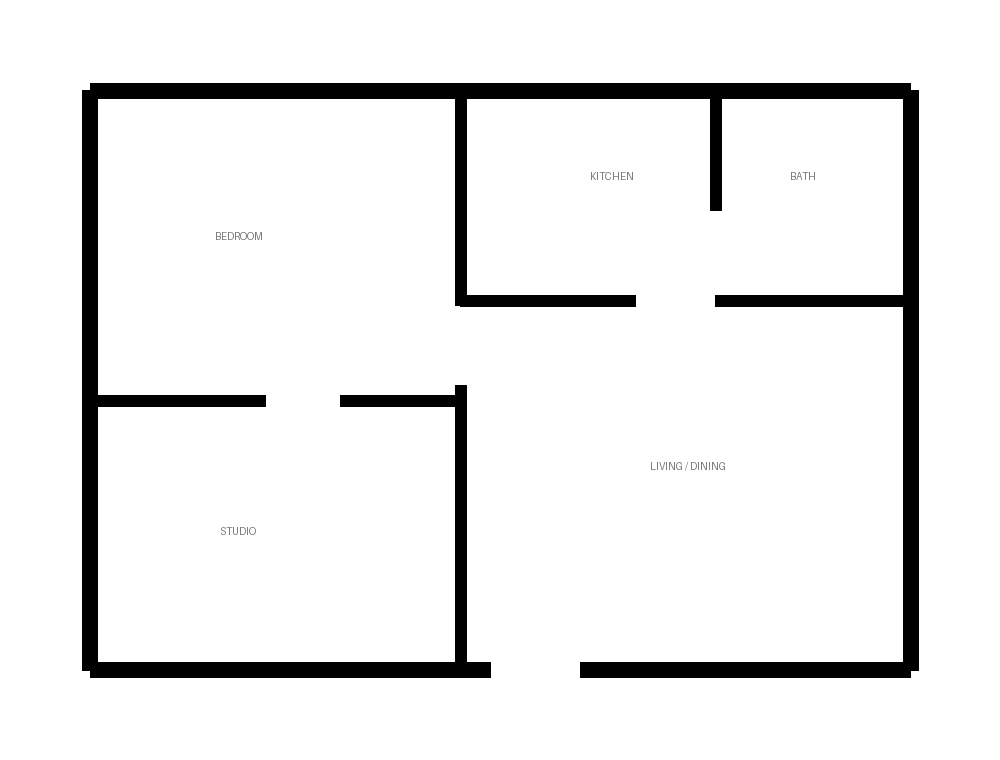 2D → 3D
See what’s on the other side
of your floor plan.
Upload a plan to bring its walls into 3D,
or take the sample for a spin.
From your actual plan
Wall geometry extracted from the image.
A space you can explore
Orbit, zoom and inspect every angle.
Your ideas stay yours
Private server processing. No paid AI services.
Turn a clear sketch into a wall preview
A hand drawing is a useful starting point when its outside boundary and internal walls are easy to distinguish. This tool detects likely wall regions in an uploaded drawing and extrudes those regions into a 3D wall preview. It helps you inspect a sketch; it does not reconstruct doors, windows or furniture as intelligent architectural objects.
Use JPG, PNG or PDF, up to 15 MB. The hosted processor accepts images up to 12 megapixels. For a multi-page PDF, select the page containing the intended floor before uploading. Keep a copy of the original drawing and the measurements you used.
Prepare the drawing before uploading
Draw dark walls on a plain light background. Straighten a photograph or scan so the plan is viewed from above. Crop page borders and unrelated notes while leaving every outside wall intact. Avoid thick furniture outlines, decorative hatching and overlapping dimension lines that can be mistaken for wall regions.
Start with one floor and one layout version. Two alternative sketches on the same page may be interpreted as a single footprint. Upload the clearer copy, then compare the detected 2D geometry against the drawing before inspecting the 3D view.
A practical scale example
Suppose the complete cropped image's longest edge represents a verified 8 metres. Set the plan span to 8 metres and enter the wall height separately, for example a measured 2.7 metres. A white margin included in that edge affects the scale: a dimension across one room is not automatically the full image span.
If the 8-metre distance refers only to the inside of a room, first identify how that distance relates to the whole drawing. Do not enter it as the total span merely because it is the only number available. Leave the result described as an approximate concept when the reference is uncertain.
Inspect the result and save a useful record
Check the outside outline, important internal walls and narrow passages. Rotate the model and compare it from above. A dark table border or dimension line can become a tall wall; a faint pencil stroke can disappear. Cleaning the source can help, but correct detection is not guaranteed.
Download the detected geometry or a supported model export when the result is useful. The converter geometry JSON records detected wall polygons; it is different from the manual floor-plan editor's project JSON. If you want to redraw individual wall segments, use the manual creator.
Read the sketch preparation guide, check how image scale works, or draw a measured floor plan.
Put your next idea on the plan.
Start with a measured input and keep a copy of your project.
Open tool