Convert a 2D Floor Plan to a 3D Model: Preparation, Scale and Review
Prepare a JPG, PNG or PDF floor plan for 3D conversion, set its scale correctly, review detected walls and choose a practical geometry export.

A 2D to 3D floor plan converter is most useful when it gives you a geometric starting point you can understand and check. Uploading a drawing does not establish its real dimensions, identify every architectural feature or produce a finished furnished interior. The preparation and review steps determine whether the result helps your project.
This guide explains the wall-conversion workflow on 3dhousemaker, including the input limits, scale convention and export checks. It also includes a reproducible numerical example that shows why blank image margins matter. Use the result for concept exploration and communication; dimensions and building decisions need verification appropriate to their purpose.
Know what this conversion produces
The floor plan to 3D tool extracts wall-like regions from a supplied plan and displays them as geometry. It works from visual linework, so dark text, furniture and other marks can interfere with the result. A clean drawing is much more useful than a dramatic photograph of a printed sheet.
The current workflow does not implement semantic recognition of doors, windows or room names. It does not automatically furnish the model, create a building-information model or assemble several floors into one coordinated building. A converted wall preview is a different deliverable from a realistic interior render. Make that distinction clear when sharing the result with someone else.
Choose the most useful source
Prefer a clear top-down plan with dark walls on a light background. If you have several sources, choose the one with the clearest geometry and the most reliable dimensions, rather than the most colorful presentation. Keep a copy of the original before removing notes or cropping.
A photograph taken at an angle introduces perspective distortion. A tightly compressed screenshot may lose thin partitions. An image with a dark paper background can obscure the difference between walls and the rest of the page. When the source cannot be interpreted confidently by a person, automatic extraction is unlikely to provide a dependable shortcut. Redrawing essential geometry can be the better starting point.
Check format, file size and pixel dimensions
The hosted converter accepts JPG, PNG and PDF inputs, with a 15 MB upload limit. The current hosted image processing configuration also limits raster images to 12 megapixels. Those are different constraints: a heavily compressed picture can be small in megabytes while still containing too many pixels.
For example, a 4,000 × 3,000 image contains 12 million pixels. A 6,000 × 4,000 image contains 24 million, even if its compressed file is under 15 MB. Resize an oversized working copy while retaining readable walls. Avoid repeatedly saving a JPEG through several compression steps. If the source is a PDF, select the page containing the actual floor plan.
Clean the drawing without inventing the building
Remove unnecessary borders, logos, unrelated elevations and large blocks of text from the working copy. Reduce clutter near walls, particularly labels or furniture symbols touching the wall linework. Preserve dimensions in a separate reference copy if removing them helps extraction.
Do not paint over uncertain areas and then forget they were uncertain. If a door opening is hard to read, note that question for the model review. A conversion may treat a narrow gap differently from what the designer intended. Cleaning should improve the visibility of known information, not silently manufacture new geometry. Keep the original and the cleaned version together for comparison.
Start with the sample before your own plan
The converter includes a sample-plan starting point. Use it to understand the controls, switch between the plan and model views, and see the difference between a wall preview and a furnished room image. This separates questions about the interface from questions about a particular source drawing.
After exploring the sample, upload your working copy and choose the correct PDF page if applicable. Wait for processing to finish before judging the result. If the source fails, retain the error message and check format, pixel dimensions, darkness and clarity. Changing several inputs at once makes it harder to identify what improved the conversion.
Understand the plan-span setting
On this site, plan span is the real-world length represented by the image's longest edge, including blank margins. It is not automatically the width of the building. Wall height is a separate setting. Confusing these values can create a model that looks plausible while every horizontal dimension is wrong.
Choose a known distance visible on the image. Establish what portion of the image it occupies and use that ratio to calculate the full span. The floor plan scale calculator can help with proportional checks. If no real measurement is available, the result remains an approximate visualization and should be described that way.
Work through a margin example
Imagine a 1,600 × 1,200 pixel image. The building's known 8 m width spans 960 pixels horizontally. It therefore occupies 960 divided by 1,600, or 60%, of the image's longest edge. The appropriate image span is 8 divided by 0.6, approximately 13.33 m.
If you enter 12 m instead, the same 960-pixel building becomes 7.2 m wide in the model: 12 multiplied by 0.6. The error is 0.8 m, or 10% of the intended width. A nice camera view will not reveal the mistake reliably. It must be caught with the scale calculation and a known dimension.
Check another direction before accepting scale
In the same example, suppose the known building depth is 6 m and it spans 720 pixels vertically. Both distances imply the same ratio: 8 divided by 960 and 6 divided by 720 are approximately 0.00833 m per pixel. That agreement supports using a uniform scale for this simplified reference.
If the two ratios disagree substantially, investigate perspective, image stretching or inconsistent endpoints. Cropping can simplify the span calculation, but cropping does not fix a distorted source. Keep a record of the distance used for calibration and a second distance used for checking. Those notes make the resulting model easier to review and reproduce.
Set wall height independently
A floor plan mainly describes horizontal relationships. Unless the source also supplies elevations or a clear note, it may not establish wall height. Enter a measured height where available, or document a provisional value for concept work. The sample assumption of 2.8 m should not be treated as a universal residential requirement.
Inspect the model after changing height. If the walls feel too tall, change the height rather than shrinking the plan span. For a multi-level project, each floor needs its own verified information and later coordination. Separate wall previews are not an automatic multi-storey assembly, even if their images look similar.
Review the extracted walls systematically
Begin with the outer boundary. Look for missing corners, stray fragments and large areas created from text or dark furniture. Then inspect internal partitions, narrow passages and places where wall lines touch labels. Compare the model with the source rather than relying on memory of the drawing.
Pay particular attention to openings. Since the tool does not semantically identify doors and windows, it cannot determine that a dark line is a lintel, that a gap is a doorway or that a furniture symbol should be ignored. Some visual gaps may survive extraction, but that is not the same as a correctly recognized architectural opening. Record what needs manual correction elsewhere.
Know when to redraw instead
Repeated conversion is not always the most efficient route. If furniture symbols are inseparable from the walls or the drawing is highly irregular, consider tracing the essential layout manually. A simpler, checked outline can communicate more than a detailed but unreliable automatic result.
Use the floor plan creator for a manual concept workflow when the arrangement itself needs editing. Keep the plan's measurement source visible and save an editable project where supported. If you move into a general modeling application, preserve the distinction between the checked reference and the geometry you build from it.
Choose an export for the next task
The converter offers GLB, OBJ, STL and DXF geometry exports. Choose based on what the receiving application and the next task require. Do not assume that choosing a format creates furniture, technical annotations, semantic room information or a native project for another design product.
A mesh workflow and a drawing exchange workflow have different review needs. A downloaded file should be opened in the actual destination before you promise compatibility to someone else. The Blender and 3ds Max workflow guide explains the geometry, unit and appearance checks involved when a wall model becomes part of a larger modeling scene.
Validate the downloaded file
Check a known horizontal distance, the chosen wall height and orientation after import. Inspect whether surfaces appear as intended and whether the file contains the part of the model you expected. Keep the original download so you can distinguish export behavior from later editing.
For the numerical example, a receiving application should show the intended 8 m width when the source and conversion settings match the assumptions. If it does not, investigate unit interpretation and import scale before changing individual walls. A successful download proves that a file was delivered; it does not prove that the receiving program interpreted every value correctly.
Keep model review and construction review separate
This workflow can help you explain an arrangement, compare a rough volume or start a modeling task. It cannot establish the safety of a structural alteration, the capacity of services or compliance with local building requirements. Those questions depend on information that the source image and extracted wall regions do not contain.
When asking a professional to review the idea, include the original drawing, known measurements and a list of conversion errors. That package is more helpful than a polished image with hidden assumptions. Mark proposed changes clearly so nobody confuses them with the existing building.
Troubleshoot by checking one stage at a time
If processing fails, first confirm a supported readable file and the correct PDF page. Then check file size and raster pixel dimensions. Next inspect darkness, background and wall clarity. If extraction succeeds but the model looks wrong, review the detected geometry and scale rather than repeatedly uploading an unchanged file.
Before sharing, confirm five things: the source is permitted to use, the working copy is readable, image span accounts for margins, wall height is separately documented and the export was inspected in its destination. A free online 2D to 3D conversion is valuable when it shortens a controlled workflow. Its strongest result is a starting model whose limits you understand and whose important dimensions you can verify.
A real example from this tool
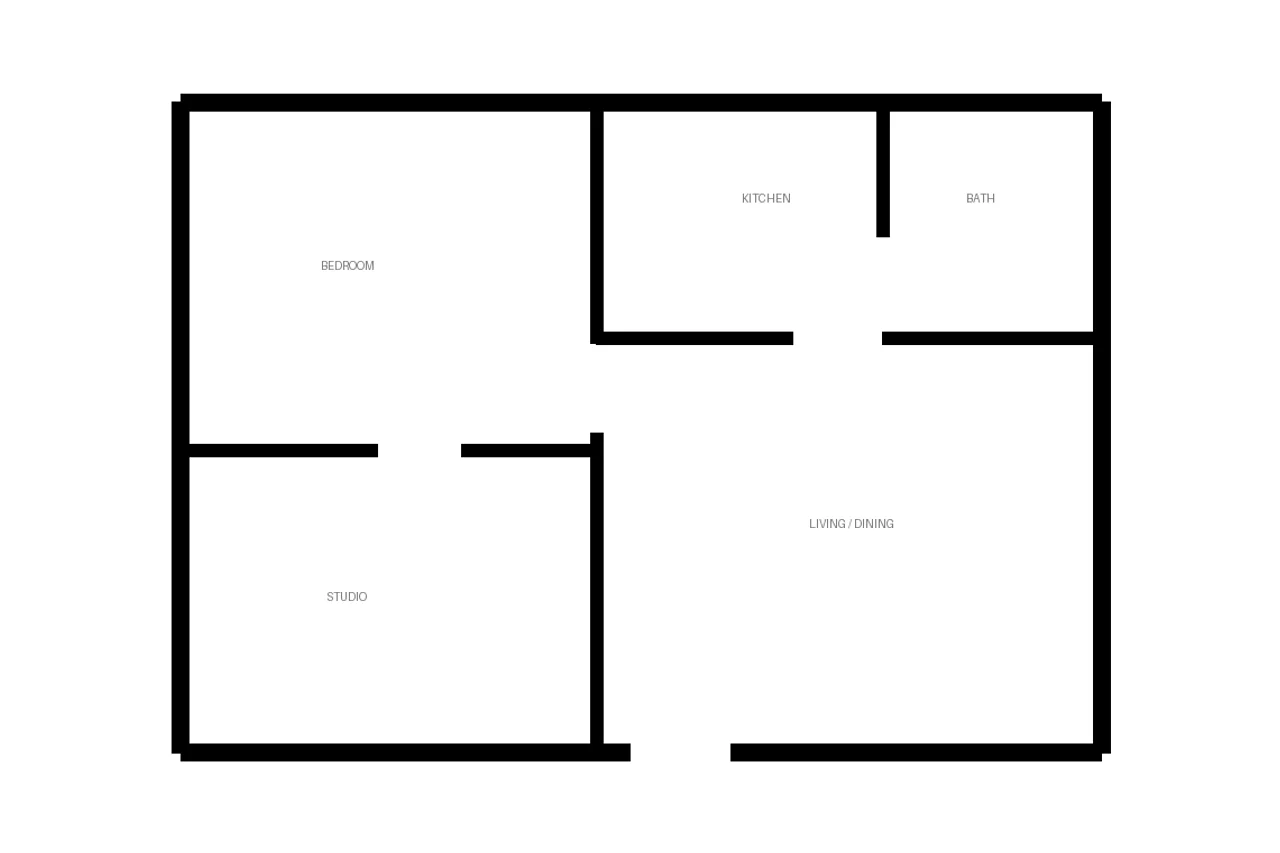
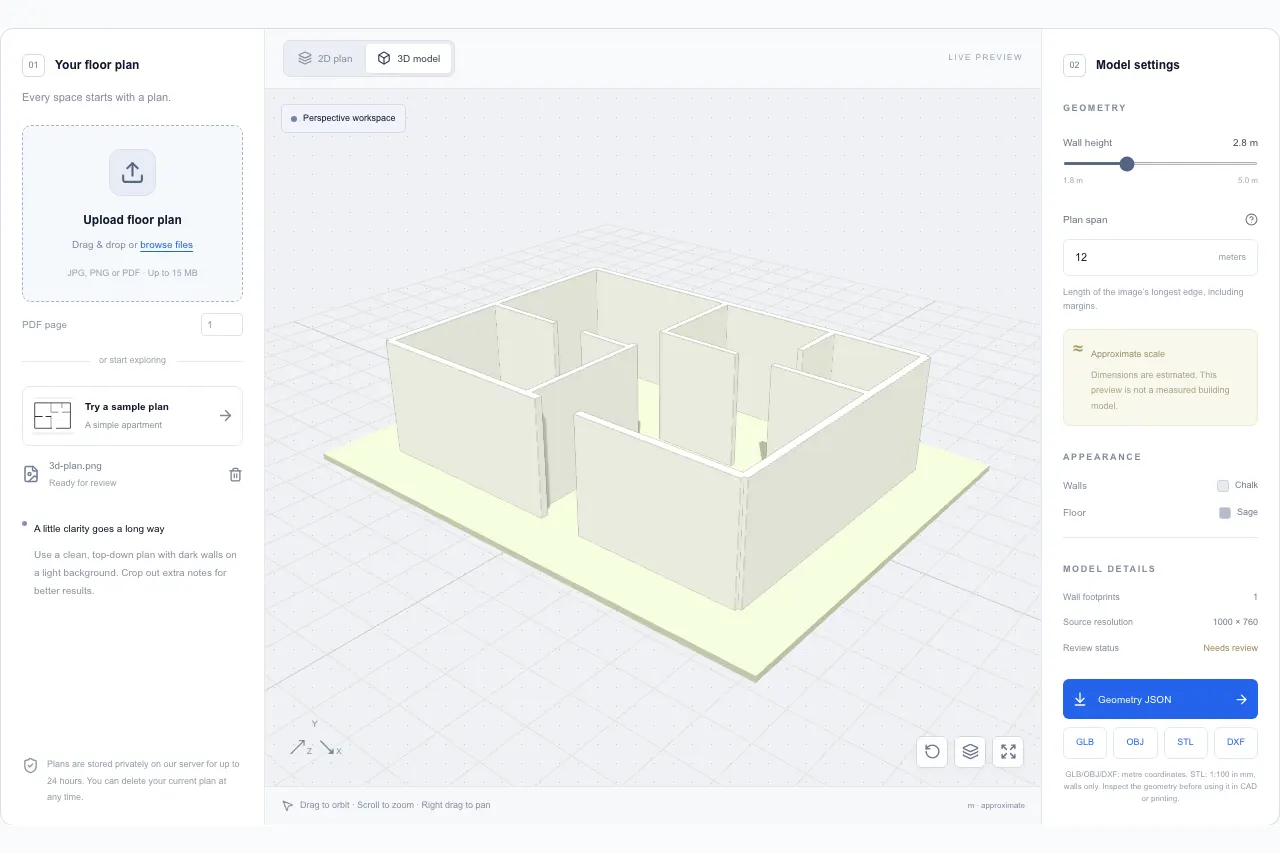
The built-in sample below was uploaded and processed in this tool. The 12 m plan span and 2.8 m wall height are demonstration settings, not verified building measurements. Compare the source lines with the detected wall preview.