Missing Walls in a 3D Conversion: What to Check
A missing wall in a converted model usually means the extraction did not preserve the corresponding shape in the input image. Increasing the 3D wall height…
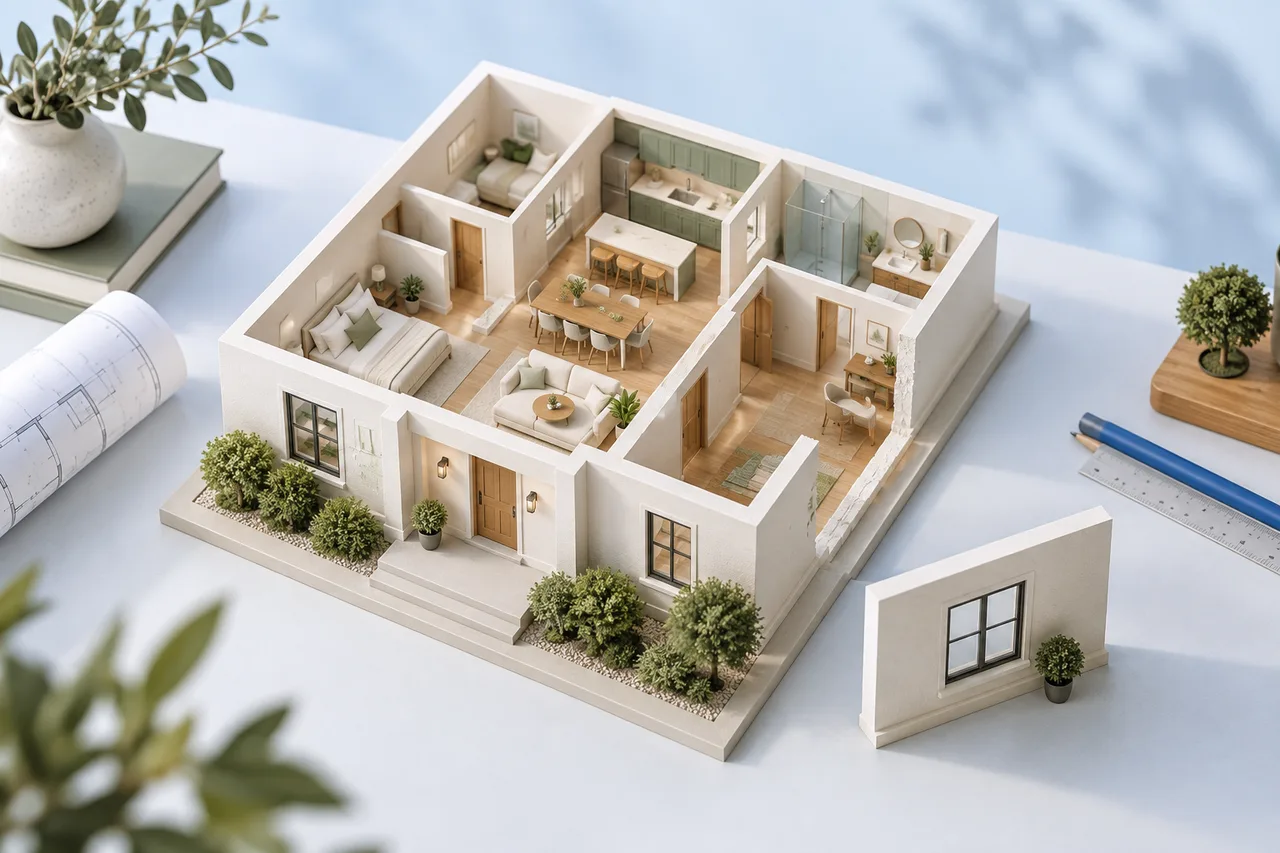
A missing wall in a converted model usually means the extraction did not preserve the corresponding shape in the input image. Increasing the 3D wall height will not restore it: height changes the extrusion of polygons that already exist.
Before editing the source, compare the original image with the detected 2D footprint. This separates a recognition problem from a viewing problem and helps you change the right thing.
Check the wall in the 2D view
Find the wall's position in the source and inspect the overlay. If the footprint is present but hard to see in 3D, rotate the model and use the top view. A nearby wall can hide a shorter segment from one angle. Also check whether the apparent missing area is an intentional doorway.
If the footprint is absent in 2D, examine the input at a useful zoom. Is the wall light grey, very thin, partly erased, or crossed by another symbol? The current converter uses image processing, not a complete understanding of architectural objects.
Compare strong and weak lines
A faint partition can disappear when the drawing is converted into a mask. Conversely, a heavy dimension line can survive and look like a wall. Increasing contrast may help one area while damaging another, so compare a thin wall, a thick wall, and an opening after any adjustment.
For example, a scan may show an exterior outline clearly while a pale internal partition nearly matches the paper background. Darkening the whole page can also darken paper stains. A cleaner export from the original document is often a better starting point than repeatedly applying stronger filters.
Look at corners and intersections
Closely spaced lines can merge, small segments can be filtered out, and broken boundaries can produce unexpected contours. Inspect wall intersections where annotations or furniture touch the linework. A tiny gap in a scan may be a defect, but it may also represent an intended opening.
Do not repair a gap by guessing. Compare another drawing revision or a verified measurement if you cannot tell which interpretation is correct. The purpose of cleanup is to make the known geometry clearer, not to invent geometry that produces an attractive model.
Make one controlled change
Save an upload copy, change one aspect, and convert it again. You might remove furniture, improve a faint line using visible evidence, or export at a clearer resolution. Keep the before-and-after files so you know which edit changed the result.
Avoid changing the crop, contrast, resolution, and annotations all at once. If the next result improves, you will not know which change mattered. If it gets worse, it will be harder to recover a useful version.
Record unresolved areas
A model with most walls present is still incomplete if an important boundary is missing. Note the uncertain segment when sharing it. A successful conversion does not validate the footprint, and a model should not be used to decide whether a real wall can be removed.
Return to the converter after preparing a clearer source, or follow the scan cleanup guide for a more systematic input review.