Choosing Wall Height for a 3D Concept Model
Wall height changes the vertical appearance of a floor-plan model. It does not change the horizontal footprint or tell you anything about the structure…
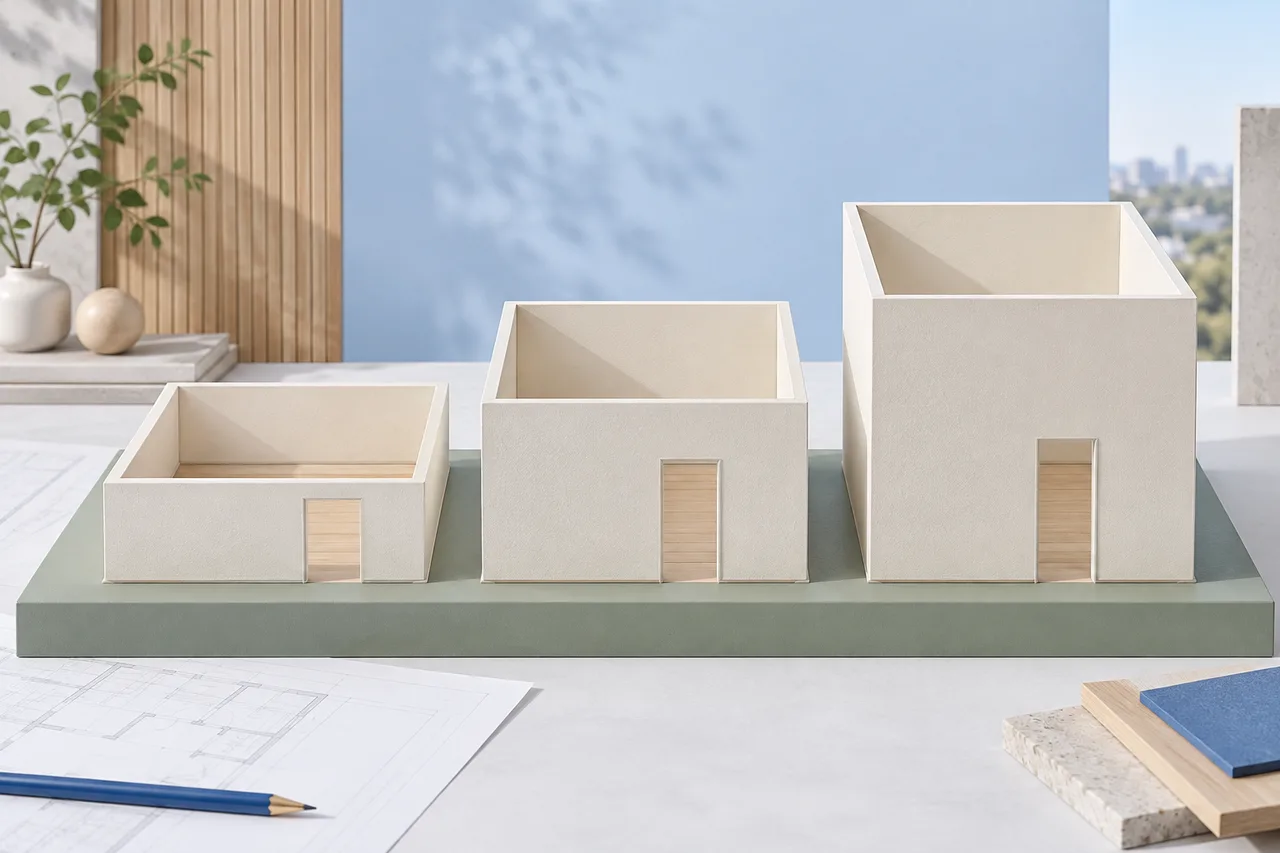
Wall height changes the vertical appearance of a floor-plan model. It does not change the horizontal footprint or tell you anything about the structure hidden inside a real wall. Treat the height control as a separate measurement decision after checking the plan's scale.
In the converter, each detected wall footprint is extruded to the chosen height. The result is useful for visual comparison, but it does not automatically include ceilings, roof slopes, lintels, or window openings.
Start with a known measurement when possible
Use a measured or documented wall height that is relevant to your purpose. A room's clear ceiling height and the total height of a structural wall are not always the same. Be explicit about which one you are representing.
If no reliable measurement is available, use a value for exploration and record it as assumed. A precise number in the control does not mean the height was extracted from the uploaded image. A typical floor-plan view generally does not provide that vertical information by itself.
Check scale before judging proportions
A room can look unusually tall because the footprint is too small, not because the height is too large. Verify the image span against a known horizontal dimension before adjusting height to make the model look more plausible.
For example, a 2.8 m extrusion above a footprint mistakenly scaled to half its real size will appear much taller relative to the rooms. Reducing the height until the image looks balanced would introduce a second error instead of correcting the first.
Compare views at a consistent height
When comparing two layout options, keep the wall height constant unless height is the feature under discussion. Otherwise a change in apparent openness may come from the vertical setting rather than the room arrangement.
Use the top view to compare wall positions. Use an angled view to understand enclosure. An interior partition can hide another wall from one camera angle, so rotate the model before concluding that a segment is missing.
Know what a uniform extrusion leaves out
Different rooms may have different ceiling levels. An attic may have sloped surfaces. An opening might have a partial-height wall below it. A uniform wall extrusion does not represent these conditions, even when its overall height is correct.
The current preview applies one height to the detected walls. Keep complex vertical conditions in your source notes or a more suitable modelling workflow. Do not infer a roof shape from the appearance of the open-top preview.
Carry the assumption into exported files
The converter's GLB and OBJ exports use the current height and span. STL is prepared as a reduced 1:100 wall model in millimetre coordinates. Check these conventions before importing into another application or a slicer.
Keep the chosen height with the exported filename or project notes. If you change it later, save a new version rather than leaving two differently scaled models with indistinguishable names. Read scale calibration for the corresponding horizontal checks.