How to Set the Scale of a Floor Plan
Scale connects the distances in a plan image with real-world lengths. Without that connection, a 3D preview may look proportionate while its metre values…
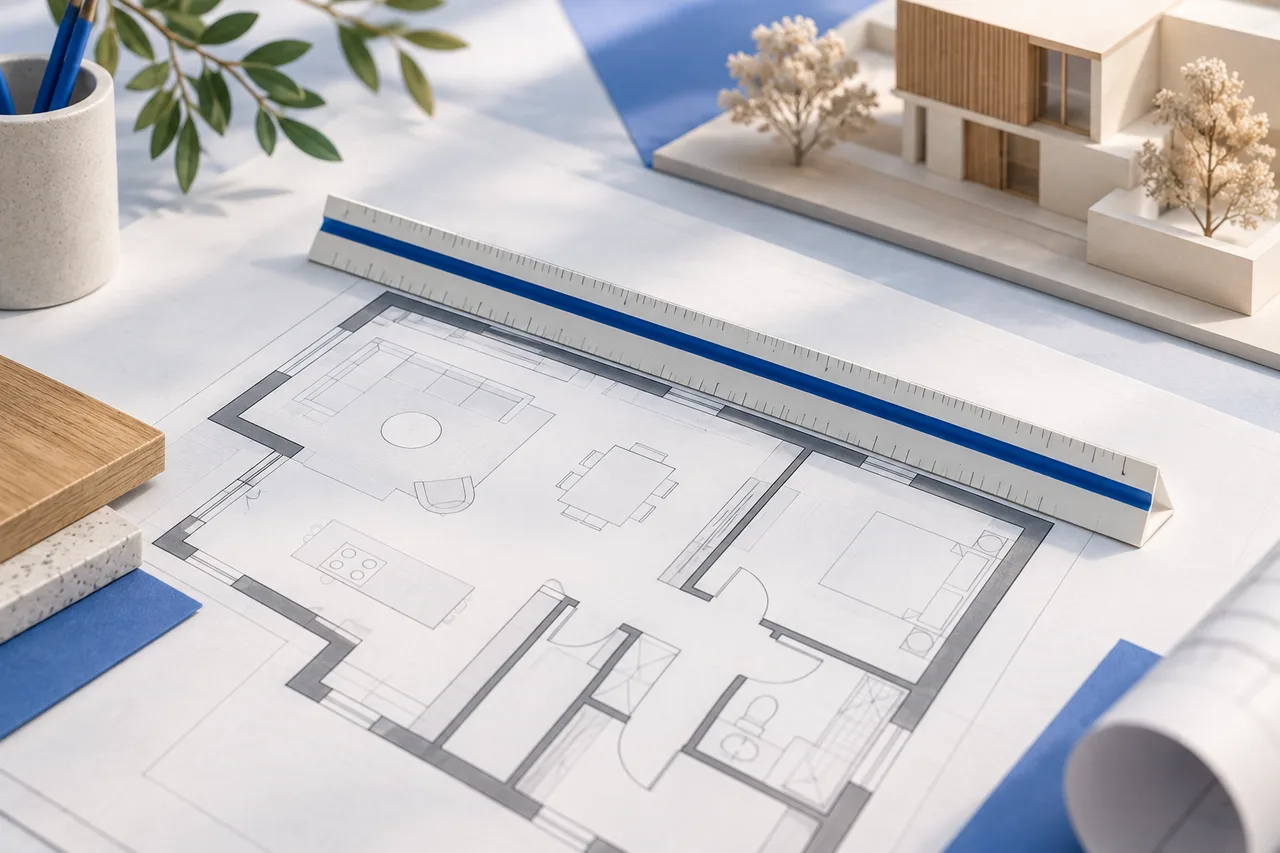
Scale connects the distances in a plan image with real-world lengths. Without that connection, a 3D preview may look proportionate while its metre values are only assumptions. Calibrating scale begins with one verified dimension and a clear definition of its endpoints.
Use the same unchanged image for the reference and every later pixel measurement. Resizing the image changes the number of pixels that represents a metre.
Choose a dimension you can identify precisely
A dimension label is useful only when you know what it spans. Check its extension lines and determine whether it measures inside wall faces, outside faces, or another reference. Do not substitute a nearby parallel line because it is easier to click.
Prefer a clearly marked, reasonably long reference. If you select each endpoint a few pixels inaccurately, the proportional error is smaller over a long segment than over a very short one. Confirm with a second dimension when the drawing provides one.
Calculate metres per pixel
Divide the actual length by the pixel length. If a 3 m segment covers 300 pixels, each pixel represents 0.01 m. A different segment of 450 pixels then represents 4.5 m in that image.
The scale calculator performs this arithmetic and accepts metres or feet. Measure in image coordinates rather than display pixels: a browser zoom level can change what you see on the screen without changing the underlying image.
Convert image scale into the viewer's span
The 3D converter uses the longest complete image edge as its span reference. Multiply that pixel dimension by metres per pixel to obtain the appropriate span. If the image is 1,400 pixels wide and the scale is 0.01 m per pixel, its full width represents 14 m.
This includes the margins. A building that is 12 m wide may sit inside a 14 m image span because the crop includes space on both sides. Entering 12 m for the entire image edge would shrink the model relative to the verified dimension.
Check for distortion
A single scale assumes the drawing was enlarged or reduced uniformly. A photograph taken at an angle can make one edge appear shorter than another. Stretching an image horizontally can also create different scales in different directions.
Measure a second known dimension, ideally in another direction. If it gives a substantially different relationship, investigate the image before using the result. Perspective correction or a fresh export may be needed; averaging incompatible scales does not fix the underlying problem.
Keep horizontal and vertical assumptions separate
Setting scale establishes the footprint size. It does not establish wall height, ceiling level, or roof geometry. Enter a verified height when you have one, and describe a default as an assumption.
Before exporting a model, record the reference dimension, image version, calculated scale, and chosen height. Those notes make the file easier to interpret in another application and prevent a future reader from treating an approximate preview as a measured survey.