Free Home Design Tools: Match the Tool to the Task
A useful home-planning workflow often begins with one narrow question: how large is the room, where can the desk go, or how do the walls connect? You do not…
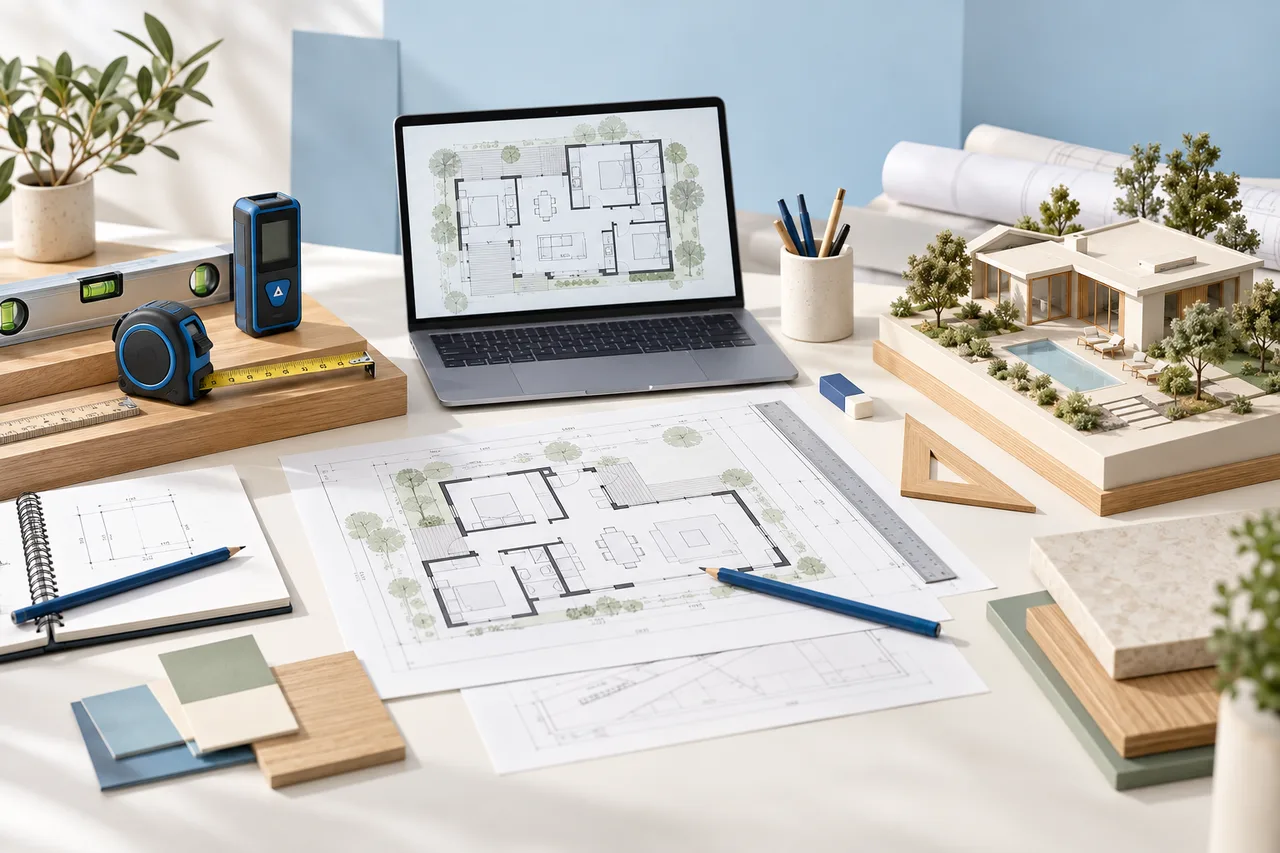
A useful home-planning workflow often begins with one narrow question: how large is the room, where can the desk go, or how do the walls connect? You do not need to start every question with a complete furnished 3D model.
The free tools in this preview cover drawing, arrangement, measurement, and an experimental wall conversion. Choose the tool that matches the information you already have, then keep the output and its assumptions together.
Start with the floor plan creator for a measured drawing
Use the floor plan creator when you have room dimensions and want to draw walls manually. Enter the envelope, add wall segments, and use furniture footprints to explore the space.
Save a project JSON to continue editing later. Export SVG or PNG when someone only needs to view the plan. The current editor is a planning tool with a limited undo history, not a permanent online project archive.
Choose the room planner for furniture alternatives
The room layout planner focuses on arranging furniture within a measured envelope. Move, rotate, and resize footprints to compare options before moving the real objects.
Overlap warnings help identify some obvious conflicts, but they do not certify access, door clearance, or compliance with local requirements. Check how chairs, drawers, and doors operate in the real room.
Use the blueprint maker for a clear presentation style
The blueprint maker uses the drawing workflow with a blue-background presentation. It can help distinguish a clean concept drawing from a casual sketch.
The blue appearance does not turn a concept into a construction document. Keep measured facts, assumptions, and proposed changes clearly described when sharing the export.
Calculate area and image scale separately
The room area calculator handles a rectangle or a rectangular envelope with a rectangular cutout. It reports area in square metres and square feet. Check that the geometry matches the room before trusting the answer.
The scale calculator uses a known real distance and its pixel length in an image. It can then estimate another distance in that same image. It cannot recover an unknown scale without a reliable reference or correct a perspective-distorted photograph.
Convert a clear existing plan into a wall preview
Use the floor-plan-to-3D converter when you already have a JPG, PNG, or PDF drawing. It extracts likely wall shapes and gives them height for inspection.
Review the result against the source. Furniture outlines and annotations may be mistaken for walls, and doors and windows are not automatically rebuilt as architectural objects. A clear input improves the starting point but does not remove the need for review.
Combine tools around a decision
For example, calculate the area, draw a measured baseline, then compare two furniture layouts. If you also have an existing drawing, use its 3D wall preview to discuss room relationships. Save each meaningful revision separately.
The most useful output is one you can explain: what was measured, what was assumed, and what still needs checking. See the complete project workflow for a practical sequence.