A Simple Floor Plan Workflow: Measure, Draw, Review, Save
A floor-plan project becomes easier to manage when each step produces a clear checkpoint. Begin with a question, establish a measured baseline, explore…
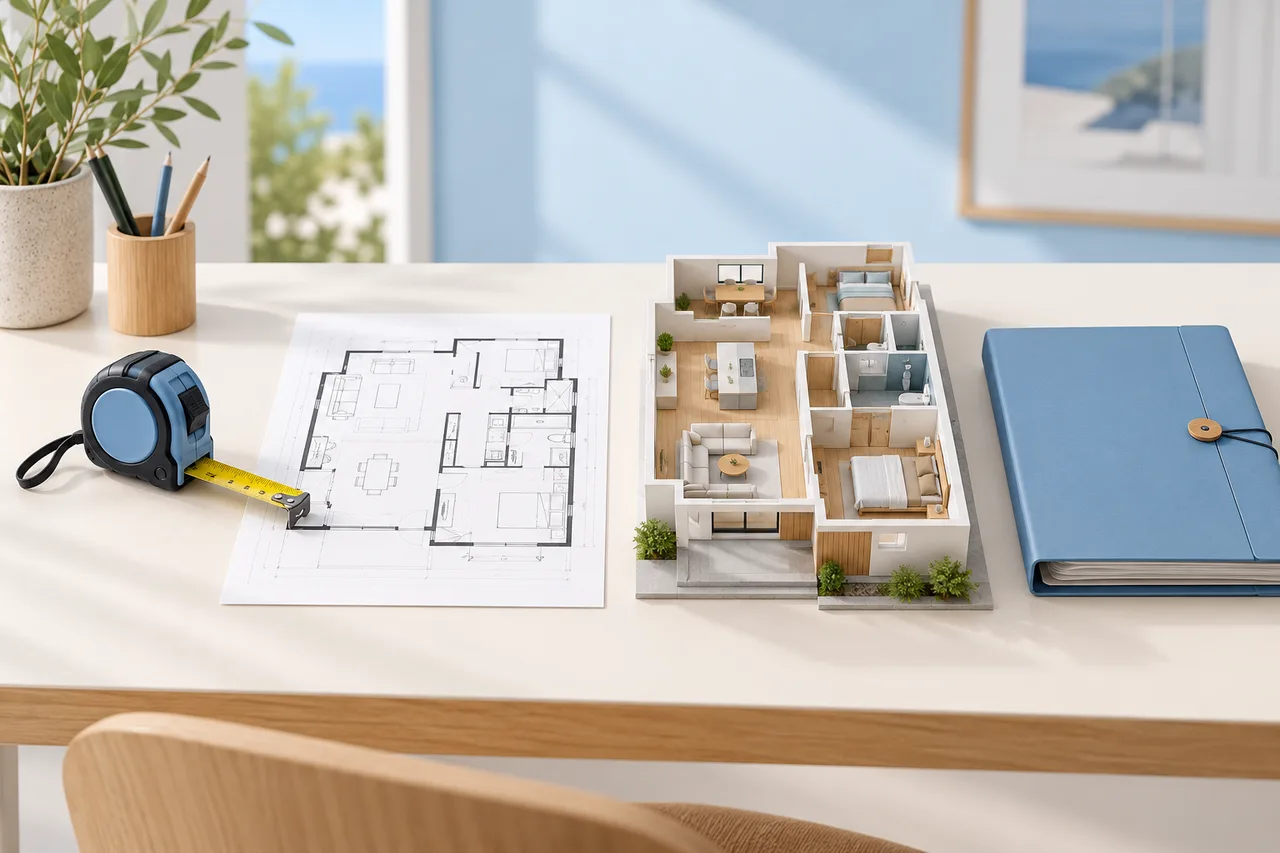
A floor-plan project becomes easier to manage when each step produces a clear checkpoint. Begin with a question, establish a measured baseline, explore alternatives, and keep enough context to explain the final choice.
This workflow connects the current 3D House Maker tools without assuming that one automatic conversion can answer every design question.
1. Define the decision
Write down what you are trying to understand: whether a desk fits, how two rooms connect, or how a proposed arrangement compares with the existing one. A specific decision tells you which measurements and outputs matter.
Keep the scope realistic. A furniture arrangement can be explored with footprints, while a change to the building itself requires appropriate project expertise beyond a browser preview.
2. Collect a reliable source
Use measured room dimensions, an existing drawing, or both. Preserve the original files and identify the revision. If measurements are approximate, record that before you draw.
For image conversion, prepare one clear floor with unnecessary annotations reduced. For manual drawing, establish the main envelope and important fixed features. Avoid mixing dimensions from different revisions without checking them.
3. Create and save a baseline
Use the floor plan creator to draw from measurements, or the converter to inspect likely walls from a clear plan image. These are different starting workflows with different output formats.
Save a drawing-project JSON for manual editing. For a conversion, keep the upload, detected geometry JSON, and scale notes together. Do not overwrite the baseline when testing a proposal.
4. Explore a small number of alternatives
Use the room layout planner to move and rotate furniture footprints. Compare arrangements using the same room geometry and object dimensions so the comparison remains meaningful.
Give each option a descriptive filename. Record what changed and what problem the change is intended to solve. A limited set of well-explained options is easier to assess than many almost-identical screenshots.
5. Check dimensions and practical use
Review door operation, furniture use, fixed obstacles, and the real measurements behind each footprint. Simple overlap warnings are useful prompts, not a complete clearance assessment.
Use the area calculator for supported rectangular or L-shaped geometry and the scale calculator for a known reference in an undistorted image. Do not substitute either calculation for missing source information.
6. Review and package the output
Compare a generated wall model with the source before exporting it. Choose SVG or PNG for a drawing presentation, GLB or OBJ for a compatible 3D workflow, and STL when preparing a miniature for further inspection.
Include the editable source where appropriate, plus notes about scale, revision, assumptions, and unresolved questions. Check the downloaded files open before treating them as your only copy.
7. Keep the next action clear
End each revision with a concrete next step: verify a measurement, test another arrangement, or discuss a proposal with the appropriate professional. The goal is a better-informed decision, not merely a more detailed image.
For a final conversion check, use the generated wall review guide. Keep your project files backed up independently of the temporary conversion workspace.