Home Assistant Floor Plan Dashboards: From a 3D View to Useful Controls
Create a useful Home Assistant floor plan dashboard from a clear image: plan entity placement, protect private details and test controls across screen sizes.
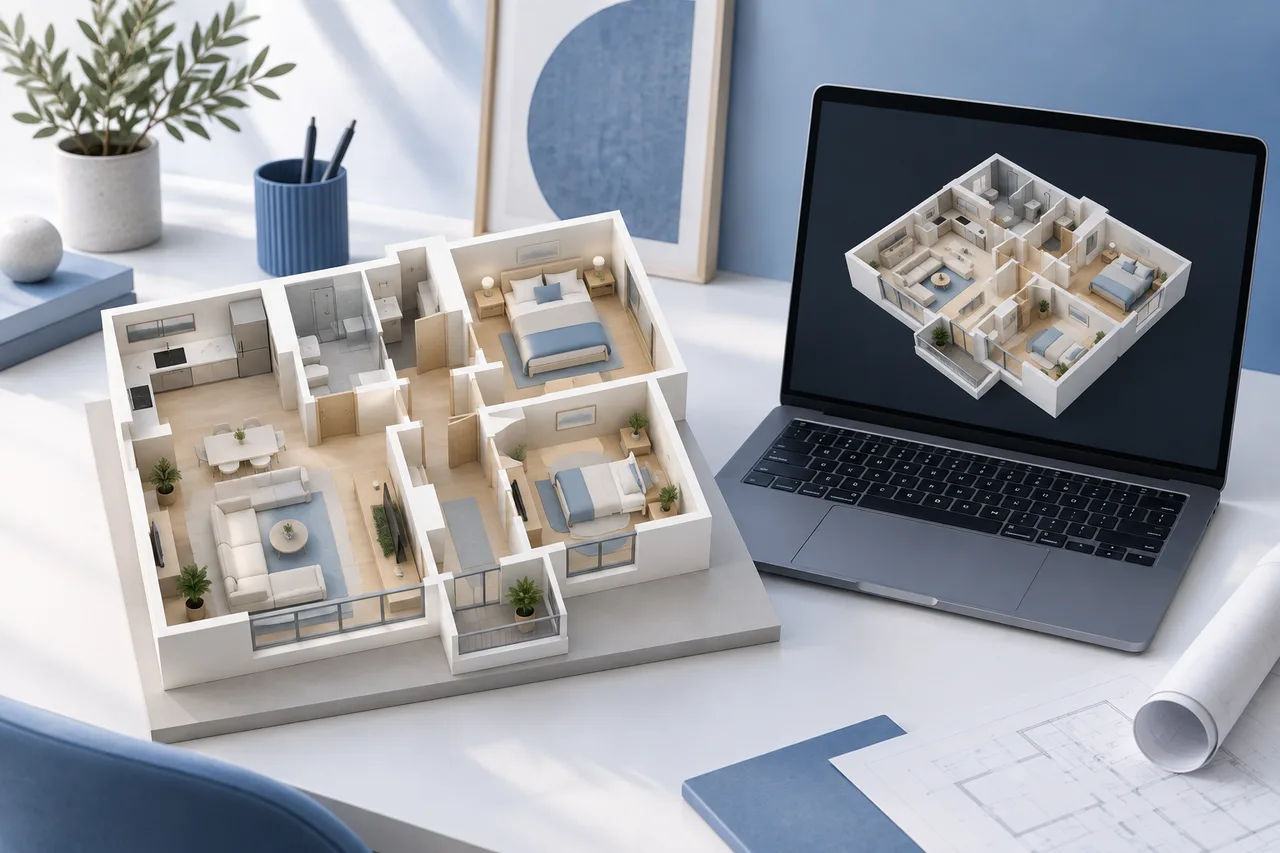
A floor plan can make a smart-home dashboard easier to understand. Instead of remembering whether “ceiling light 3” belongs to the bedroom or hall, you see a control near the room it affects. The visual layout becomes a map for everyday tasks.
The useful starting point is usually a clear, simplified image. A dramatic perspective might look impressive but hide rooms, shrink labels and make icons difficult to place. Choose the view around the actions people need, then add visual detail only when it improves recognition.
This guide explains a practical image-based workflow. 3dhousemaker does not connect directly to Home Assistant, discover devices or synchronize a model with entity states. You prepare the plan separately, then configure and maintain the dashboard in your own Home Assistant installation.
Understand what “3D floor plan” means here
People searching for a Home Assistant floor plan in 3D may mean a rendered background, an interactive model or a control panel that resembles the house. These are different projects. The standard picture-elements card uses a two-dimensional image with elements placed over it; it is not a native real-time 3D scene.
Home Assistant's picture-elements documentation describes image-based placement of icons and other elements. The minimal configuration later in this guide follows its documented keys. More elaborate third-party approaches need their own maintenance and compatibility review.
A rendered view can still be useful as the background. Treat it like a carefully composed diagram: the image explains rooms, while the dashboard elements communicate current information. Moving a wall in the original model will not automatically relocate your controls.
Define three tasks before drawing anything
Choose three ordinary tasks for the first version. For example: identify which living-room light is on, check the kitchen temperature and find a bedroom light's details. Keep security-sensitive controls and complex automation changes out of the first experiment.
Write down who will use the screen and where. A wall tablet viewed while standing has different needs from a phone held close to the face. Decide which information belongs on the plan and which is better served by a straightforward list.
A dashboard should not require the user to admire the model before finding a light. When a room contains many entities, select the ones that benefit from spatial context. Put the rest on a room-specific page or in an accessible alternative control arrangement.
Prepare a clean building reference
Start with a plan whose room positions you understand. Remove dimension chains, decorative titles and unrelated notes from the dashboard copy. Keep the measured original separately. The public-facing dashboard image does not need to reveal every dimension of a private home.
The floor plan creator can help prepare a simple building arrangement. If you already have a suitable source, the floor plan to 3D tool can produce an approximate wall preview. Neither workflow creates Home Assistant entities or configures their behavior.
Choose a consistent orientation and keep it for future revisions. Rotating the background later forces you to reposition every overlay. Label rooms in familiar household language instead of carrying ambiguous abbreviations across from a technical drawing.
Choose a top view or a shallow perspective
An overhead image makes positioning predictable. It gives every room a visible area and makes it easier to compare the image with the source. A shallow oblique view can make walls more recognizable, but tall walls may cover the areas where controls need to sit.
Compare the two views using the same three tasks. Can someone identify the room without a label? Does the smallest room still have enough visible space? Is the kitchen partly hidden? A recognizable roof or rich material texture is not helpful if it consumes the space needed for controls.
You can use a plain background for the first version and add a more detailed one later. Save the image bounds and room positions so that a visual refresh does not turn into a complete dashboard rebuild.
Reserve space for controls in the image
Leave calm areas where icons and labels will appear. A floor covered with strong patterns makes a small state label harder to read. Use furniture sparingly, especially in rooms with several useful controls.
Do not place important controls where a person's attention is drawn to a misleading object. A light icon on a decorative table may suggest it controls the table lamp even if it affects the ceiling. Put it near a clear room label or use an unambiguous name.
The room layout planner can help explore which furnishings explain the room. For the dashboard, remove any object that competes with the information. You are creating a practical map rather than a listing illustration.
Work through percentage coordinates
For an original placement example, imagine a background 1200 pixels wide and 800 pixels high. A chosen icon center at x = 300 and y = 240 corresponds to 25% from the left and 30% from the top: 300 ÷ 1200 × 100 and 240 ÷ 800 × 100.
Home Assistant's documented styling uses percentage positions; its default transform centers the element on the position. That is why this example locates an icon center rather than its upper-left corner. Verify the placement in your actual card, because the final composition still needs visual review.
Keep a small placement table during preparation. Record the room, entity, intended information and coordinates. If the image changes later, the table explains why the control was placed there and makes accidental mismatches easier to find.
Start with one illustrative card
The following example is deliberately small. Replace the image and entity with appropriate resources in your own installation. It shows a state icon and its position; it does not create a device, provision an integration or include credentials.
type: picture-elements
image: /local/house-dashboard.png
elements:
  - type: state-icon
    entity: light.living_room
    style:
      left: 25%
      top: 30%
Check the entity in your Home Assistant instance before using it. The example name is a placeholder, not an instruction to rename an existing device. Keep the first card easy to understand, then add one item at a time so the cause of a problem stays visible.
Use the current official documentation when adding actions. Decide whether a tap should show information or change a state, and explain that choice to other household members. A picture alone cannot tell someone what a control will do.
Check image hosting before sharing a plan
The /local/ image path in the example is a convenience with a privacy implication. Home Assistant's HTTP file-hosting documentation states that files served from its www folder are not protected by Home Assistant authentication. Anyone who can reach the URL and knows it may access the file.
Do not place a detailed private plan there merely because the dashboard requires a login. Prepare a simplified image without addresses, access codes, alarm locations or sensitive household details. Check the hosting method for your installation and your intended remote-access arrangement before uploading it.
Changing a filename is not an access-control system. If you need an image to remain restricted, use an appropriate protected method and confirm its behavior rather than relying on the name being hard to guess.
Protect the installation and the screenshots
Keep credentials and access tokens out of YAML examples, image files and screenshots you share for troubleshooting. Crop account names and unrelated personal information before publishing a dashboard view. An attractive floor plan can reveal much more about a household than a normal light-control screen.
Home Assistant's security guidance recommends strong unique account passwords, multi-factor authentication and keeping the system updated. Follow its supported remote-access guidance when access outside the home is needed.
For a design discussion, share an anonymized mockup with fictional rooms and entity names. The person helping with contrast or placement rarely needs a complete image of your real property. Keep the actual device configuration and private source plan separate from that demonstration.
Test the smallest screen first
A full-house diagram can look clear on a desktop and become unusable on a phone. Shrinking the image also shrinks the room area available around each control. Percentage positioning preserves relative location; it does not guarantee readable text or comfortable interaction.
At the smallest intended screen size, try the three tasks without zooming. Look for overlapping icons, labels over walls and rooms that have become too small to distinguish. Test in both light and dark surroundings, since glare and low contrast can change readability.
If the whole house no longer works, create a simpler overview and separate room views. Keep a standard list of controls available as an alternative. A household member should be able to use the system even when a spatial diagram is unfamiliar or difficult to see.
Design for missing and unexpected information
Consider what the dashboard should communicate when an entity is unavailable, renamed or removed. Do not allow an old background illustration to imply that a light is currently on. Current state should come from the dashboard entity rather than a decorative glow painted permanently into the image.
Review the panel with a second person. Ask them which device they expect each icon to represent and what they expect to happen after tapping. Differences in interpretation expose problems that are difficult to see when you built the layout yourself.
For any control with a significant consequence, choose an interaction and review process appropriate to that action. Do not extend a simple floor-plan experiment into door, alarm or other sensitive control merely because another icon fits.
Define a small acceptance test
Use a short test sheet rather than judging the dashboard only by appearance. Ask a household member to find the living room, identify the relevant control and explain the displayed information. Record misunderstandings in ordinary language, then change one design choice and repeat the task.
Include a distracted-use scenario: someone arrives carrying a bag and glances at the wall display. If they need to inspect a detailed sofa model to work out which room they are viewing, simplify the background. Room names, recognizable orientation and a consistent control placement usually deserve more space than decorative detail.
Keep the background and controls in sync
Store the editable image source, the exported background and the placement table together. Add a revision date and record the main change. If a room is renamed or divided, review the corresponding entities and labels instead of updating only the artwork.
Our floor plan project workflow offers a useful versioning habit: preserve the baseline and keep a short change log. For a dashboard, also record which screen sizes were reviewed and which ordinary tasks were checked.
A successful floor plan dashboard does not need to behave like a game. It needs to make household controls understandable, keep private information appropriately protected and remain easy to maintain. Start with one image, a few clear entities and a repeatable review; add complexity only when it solves an actual problem.