SketchUp House Plans: Trace an Image, Set Scale and Organize Floors
Turn a floor plan image into a controlled SketchUp reference. Learn scale checks, wall tracing, floor organization and a practical export review.
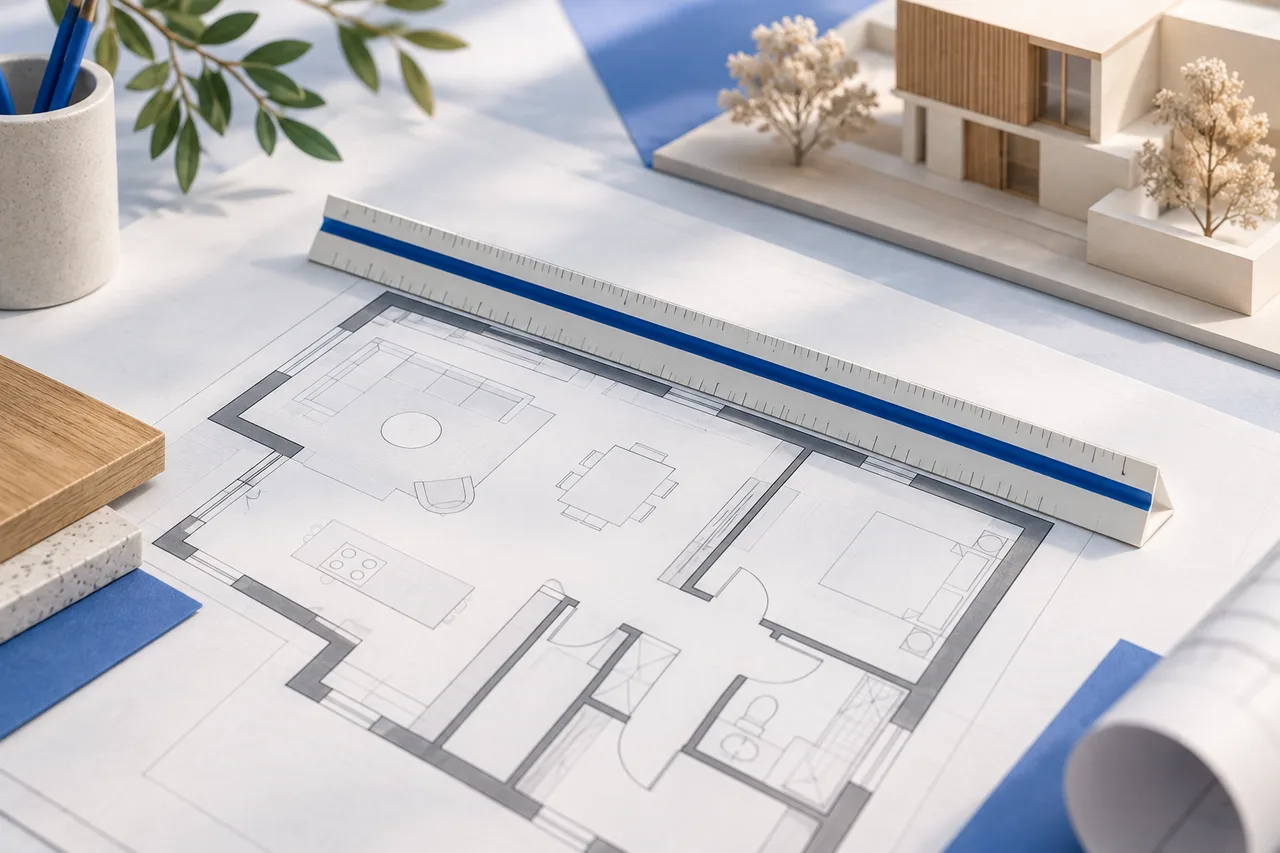
Tracing a house plan in SketchUp is useful when you have a readable drawing and want to build geometry you can inspect and revise. The critical step is not raising the first wall. It is establishing what the reference means, setting a trustworthy scale and deciding which parts of the drawing deserve to become geometry.
An image can contain dimensions, furniture symbols, handwritten notes and linework from several revisions. Tracing everything produces a complicated model with little practical value. This workflow starts with a simple reference and builds a controlled house layout from it. The numerical examples are educational checks, not measurements of a particular property.
Use the current product documentation
Older searches often say “Google SketchUp for house plans” or “Google SketchUp house plan.” Those names reflect the product's history. SketchUp's own history records its acquisition by Trimble in 2012. Use the documentation for the edition you are actually running rather than assuming that an old tutorial describes the current interface.
Capabilities and menu locations can differ between desktop, web and other editions. Before preparing a large project, confirm supported image formats, saving options and the exports you will need. This guide concentrates on the underlying tracing decisions; a current help page should settle any edition-specific command sequence.
Identify the drawing's authority
Record who supplied the source, its date and whether it represents existing conditions or a proposed design. A marketing plan may explain room relationships without providing dependable dimensions. A scan of a measured drawing may be useful, but copying or photographing it can introduce distortion. A dimension printed beside a wall is not proof that the rest of the image has a uniform scale.
Keep the unedited original. Make a separate working copy for cropping or simplifying. If the plan includes an address, names or access information, remove anything unnecessary from the copy you intend to share. Do not redraw or distribute someone else's copyrighted design without the necessary permission.
Prepare an image worth tracing
Prefer a top-down drawing with readable wall edges and minimal perspective distortion. Rotate the working copy so its principal walls are roughly horizontal and vertical. Crop unrelated sheets, decorative borders and oversized blank margins, while retaining enough dimensions to check both directions.
Avoid sharpening the image until letters and thin walls become jagged. The goal is not an impressive picture; it is a reference you can interpret. If a wall disappears behind text, mark that as uncertain rather than inventing the missing segment. If several revisions overlap, choose one authoritative arrangement before modeling. Resolving the source is usually faster than correcting a heavily traced mistake later.
Import the image as a reference
SketchUp's official image guide explains that images can be imported as image entities and then traced with drawing tools. It also describes using a top view, with parallel projection as an option, for this task. Follow the relevant edition instructions and keep the image on the intended ground plane.
Treat the image as a reference layer of information, not part of your finished wall geometry. Place it near a sensible model origin and choose a recognizable corner as a common reference. That choice makes future floor alignment and imported objects easier to inspect. Save the project before beginning detailed linework.
Establish scale from a known length
Choose a long dimension with clearly defined endpoints. A full room length or overall building dimension is usually easier to identify than a tiny opening. SketchUp's official scaling documentation covers resizing geometry with known measurements. Apply the documented method appropriate to your edition and verify the result rather than relying on visual size.
For an arithmetic example, suppose the reference segment represents 8 m but its imported length is 5 m. The required uniform factor is 8 divided by 5, or 1.6. That factor describes the geometry's change in size. It does not mean changing the display from meters to centimeters will fix an incorrectly sized reference.
Test a second dimension before drawing walls
After calibrating the 8 m segment, inspect another known length in a different direction. Suppose a 6 m dimension now reads 6.18 m. The discrepancy is 0.18 m, or 3%. That suggests the reference may be distorted, the endpoints may have been chosen differently, or a printed dimension may refer to another wall face.
Do not silently stretch one direction until both numbers appear correct. Investigate the source first. If you decide that a nonuniform correction is justified, record why and retain the original. For critical dimensions, a checked measurement is preferable to forcing an uncertain picture into agreement. The floor plan scale calculator can help with the arithmetic while you assess the evidence.
Decide what the wall lines mean
A pair of dark lines may show two wall faces, while a single line may indicate a partition centerline. Thick scanned ink can make the distinction unclear. Pick a consistent interpretation and document it. Do not trace one room to inside faces and the next to outside faces merely because the image looks cleaner that way.
Use the drawing's dimensions to distinguish clear room sizes from overall dimensions. If a clear room measures 3.2 m and its two surrounding walls are each assumed to be 0.15 m thick, the corresponding outside span would be 3.5 m under that simplified assumption. Those numbers are an example, not a recommendation for structural wall thickness.
Trace a simple envelope first
Begin with the main exterior boundary. Use as few meaningful segments as the layout permits, instead of following every pixel irregularity. A scanned straight wall does not need dozens of tiny edges because its image has a rough outline. Keep deliberate offsets or angled walls where the actual design calls for them.
Check that the outline closes and stays on the intended plane. Then add the primary interior partitions. Measure across several rooms before continuing. This staged approach limits the amount of work affected by a discovered scale error. If you want to explore a new arrangement before detailed modeling, a manual floor plan creator can help separate layout decisions from tracing decisions.
Create wall geometry without trapping mistakes
Give the traced wall regions a clear thickness and height based on your reference or documented assumptions. Keep major parts organized so a later edit does not unintentionally pull unrelated edges. A visually connected model should still let you understand which objects belong to which floor or design option.
Do not raise every traced mark. Furniture outlines, dimension strings and door-swing arcs are information, not walls. Review the plan after extruding the main walls: a short line that seemed harmless in 2D can become a tall obstruction in 3D. Leave uncertain elements in a clearly identified review state rather than incorporating them as established geometry.
Model openings from useful measurements
For doors, record their wall position, opening width and any relevant height information. For windows, include the sill and head where known. A plan image often lacks vertical information, so it cannot justify every opening height you see in a finished model. Separate those assumptions from verified dimensions.
Compare the wall above and beside each opening with the intended design, but do not infer structural adequacy from its appearance. A model may show where a proposed opening goes while still requiring a qualified review of how it could be built. Keep door operation in a separate readable representation when it helps assess furniture or circulation.
Organize floors around a shared reference
If you model more than one floor, give each level an unambiguous name and a recorded elevation. Ground floor and first floor can mean different levels in different regions. Labels such as entry level and upper level, together with elevations, reduce confusion when sharing the file.
Use the same reference corner for both floor images and check their external dimensions before stacking geometry. A small horizontal shift can make an upper wall appear unsupported or move a stair opening. Review each floor independently and then together. The two-storey planning guide covers the layout questions that a correct visual alignment alone cannot answer.
Add furniture only after the shell is checked
A table or bed can help communicate scale, but imported assets should not become the basis for calibrating a house. Check the asset's actual dimensions before placing it. Use simple blocks when the purpose is to test usable space, especially in an early layout.
Keep heavy decorative assets out of the first review. They can make navigation slower and draw attention away from unresolved geometry. Ask the practical questions first: does a door intersect the wardrobe, can a chair move, and is the route through the room understandable? Materials can follow once the arrangement is stable.
Review the model in deliberately plain views
Create a top view for dimension checks and a few perspective views for spatial review. Keep one plain appearance that makes edges and openings easy to inspect. A dark material or dramatic shadow can conceal a wall that overlaps another wall. A wide-angle image can make a narrow room appear generous.
Compare the model against the original source at the same reference points. Note any intentionally changed partitions. If you are presenting an alternative layout, label it as a proposal rather than allowing readers to mistake it for the existing property. The finished image should explain the design, including its uncertainty, rather than merely make it look complete.
Export a small test before the full model
Decide whether the recipient needs a native project, geometry or an image. Confirm the exact export options available in your edition. A picture of a house model does not let someone edit its walls, and a mesh export may not preserve the organizational structure of the original project.
Open a test export in the intended destination. Check a known distance, orientation, object placement and any necessary materials. If you are comparing a manually traced SketchUp model with an image-based conversion, the 2D to 3D workflow guide explains what to review in an extracted wall model. Keep the reference image and editable source alongside your approved export.
Before you hand the plan to someone else
Include units, source date, verified measurements and unresolved assumptions in a short project note. Check that wall thicknesses are consistently interpreted, floor levels share a reference and openings have not been invented from a view that could not show them. Save a clean revision before further design changes.
A sound SketchUp house plan is more than a neat tracing. It is a model whose dimensions and decisions can be followed by the next person. When a source cannot support that confidence, redraw from better measurements rather than investing more detail in an uncertain image.