Preparing a Floor Plan Model for STL Export
A floor-plan-to-STL workflow turns a drawing into mesh surfaces that a slicing application can inspect. The difficult part is not the file extension. It is…
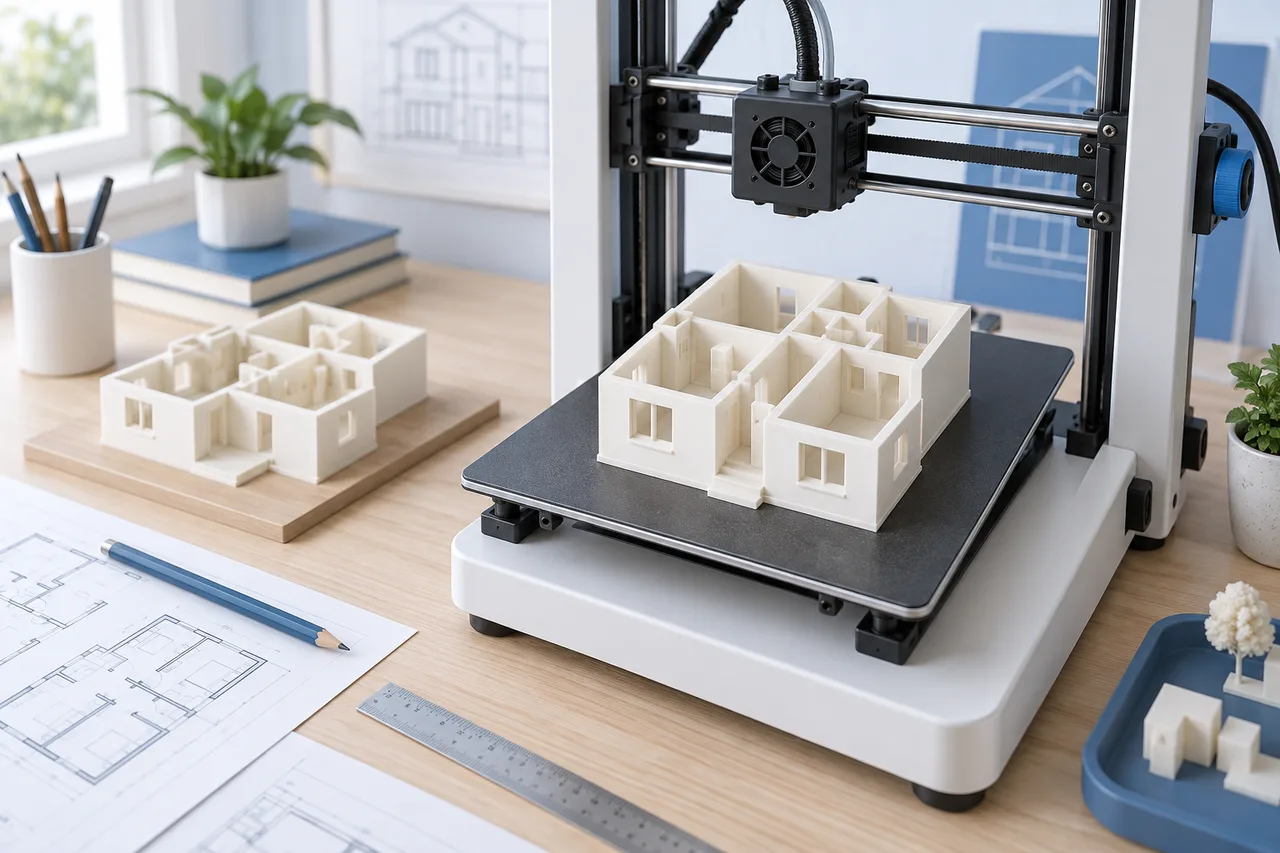
A floor-plan-to-STL workflow turns a drawing into mesh surfaces that a slicing application can inspect. The difficult part is not the file extension. It is making sure the walls were detected correctly, the miniature has a known size, and the resulting parts can be manufactured with your chosen process.
3D House Maker exports detected walls as a binary STL at a 1:100 miniature scale, with coordinates intended as millimetres. The export is a starting mesh for review, not a guaranteed printable architectural model.
Prepare and check the source first
Upload one clear floor, preferably without heavy furniture outlines or unrelated notes. After conversion, compare the wall overlay with the original drawing. Remove or correct problems at the source where practical and process it again.
An isolated rectangle that was originally a dining table can become a wall enclosure. If that mistake reaches the STL, the slicer cannot infer that the object should have been furniture instead.
Establish the full-size dimensions
Set the model span from a reliable measurement and confirm what the image bounds represent. Keep wall height separate from horizontal scale. If the source is unmeasured, do not describe the miniature as an accurate scale model.
For example, a verified 12-metre span should become 120 millimetres at 1:100. A wall height of 2.8 metres becomes 28 millimetres. These numbers illustrate the export ratio; they are not dimensions inferred from your uploaded plan.
Export and inspect the imported size
Choose STL after reviewing the 3D preview. Import the file into your slicer and inspect its overall width, depth, and height. STL has no universal embedded unit declaration, so the receiving application must interpret the coordinates as intended.
If the size is wrong, resolve the unit or scale issue before modifying individual walls. Record any resizing applied in the slicer so the physical model can be compared with the source later.
Examine disconnected and overlapping surfaces
The converter extrudes detected wall polygons. Separate wall meshes can intersect, and small detected marks can become disconnected pieces. Inspect the slicer's layer preview rather than only its shaded model view.
Look for missing sections, unexpectedly thin features, overlapping surfaces, and objects that do not connect to anything else. A mesh editor may be needed to combine or repair shapes. The current export does not include a purpose-built printing base; add one in your modelling workflow if your design requires it.
Choose printable detail deliberately
A tiny gap that is visible on screen may disappear in a small physical model. The limits depend on the printer, material, orientation, and settings. Check the guidance for your own equipment and use a small test section when uncertain.
Keep the original export before thickening walls or simplifying corners. Such changes can make a presentation miniature easier to produce while changing its geometric fidelity.
For the next step, read 3D printing a house model. For other uses, compare GLB, OBJ, and STL before exporting.