When OBJ Makes Sense for a Floor Plan Model
OBJ can be a useful bridge between a floor-plan conversion and a mesh editing application. It gives you geometry to inspect and revise, but it does not…
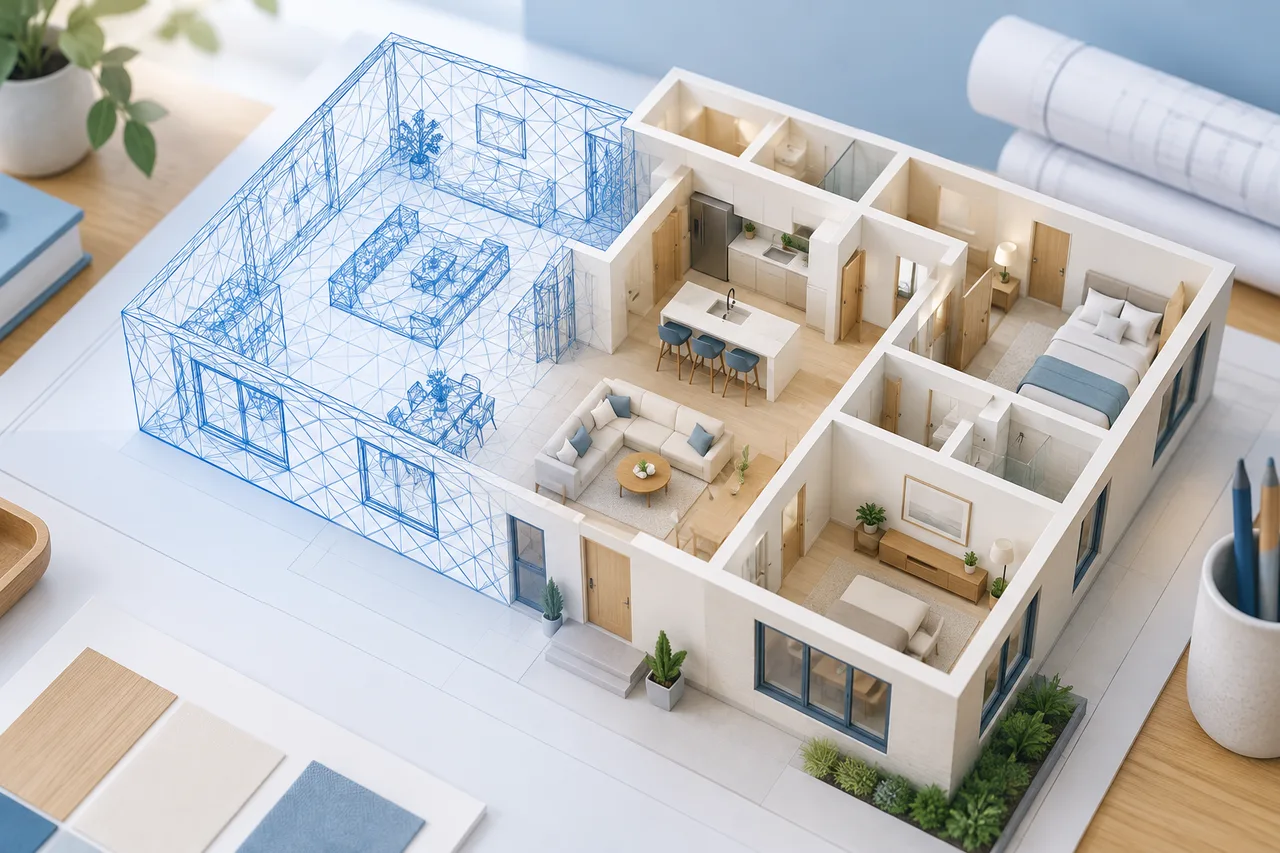
OBJ can be a useful bridge between a floor-plan conversion and a mesh editing application. It gives you geometry to inspect and revise, but it does not automatically create the structured architectural objects that a CAD or BIM workflow may require.
The 3D House Maker OBJ export contains the detected wall meshes. Its numeric coordinates represent metres. The current export does not include a separate material package, furniture, or classified door and window objects.
Check the wall extraction before export
Upload a readable drawing for one floor and compare the detected walls with the source. Start with the main outside boundary, then inspect internal partitions and small disconnected objects.
A thick annotation may become a wall, while a faint partition may be missed. Correcting the input and converting it again can be simpler than editing many incorrect meshes after import. Keep the original source so every change remains traceable.
Record the intended units
OBJ does not impose a universal real-world unit. The same numeric coordinate can be interpreted differently by different applications. In this workflow, tell the receiving application that the exported coordinates are metres when its importer offers a unit setting.
For example, an intended 8-metre span should measure 8 metres after import. If it measures 8 millimetres or 800 centimetres in an unexpected context, examine the import configuration before resizing the walls by eye.
Inspect the geometry in your editor
View the model from above and from an oblique angle. Check that the wall height matches your chosen value and that the plan has not been mirrored or rotated in a confusing way. A change of viewing axis is different from a change in geometry.
Inspect wall junctions, overlapping pieces, and tiny detached fragments. The export contains extruded detected polygons; it is not a promise of one clean, connected architectural solid. Your intended use determines whether you need to join, clean, or remodel those surfaces.
Add materials and details deliberately
Apply materials in the receiving application if you need a presentation render. Model doors, windows, furnishings, and a more accurate base there when required. Keep those additions distinguishable from features verified in the original drawing.
If a feature is assumed, label that assumption in your project notes. Otherwise, a detailed model can suggest a level of source certainty that the initial floor plan never provided.
Save both the exchange file and working project
Keep the downloaded OBJ as a checkpoint and save subsequent edits in the modelling application's native format. Record the source revision, measurement used for scale, and any import scaling.
A collaborator should be able to understand how your edited model relates to the drawing. A screenshot alone is not enough to preserve that history. For a more self-contained viewing exchange, consider GLB; for a miniature workflow, read the STL guide.