Exporting a House Model as GLB for a 3D Viewer
GLB is useful when you want to move a simple 3D wall model from the browser into another compatible viewer or modelling application. It keeps the model data…
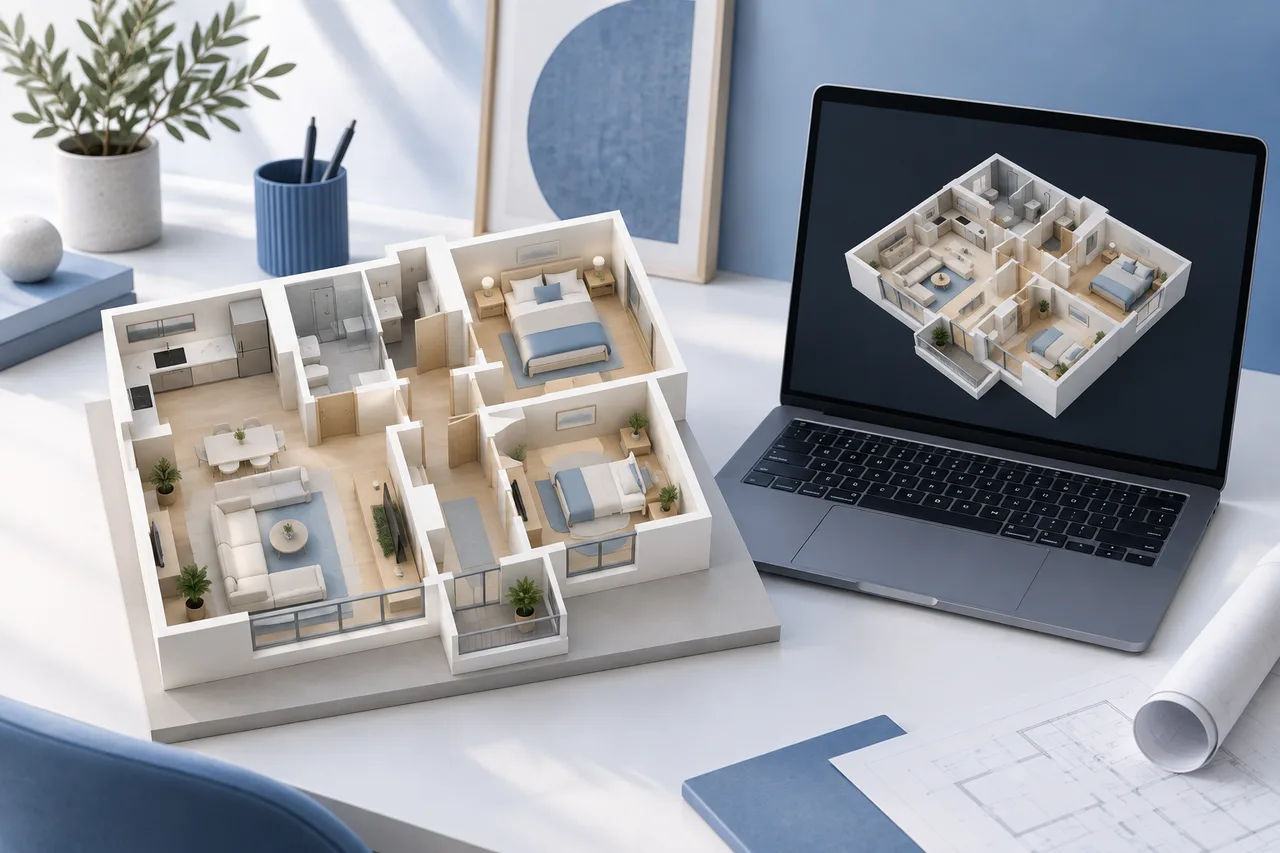
GLB is useful when you want to move a simple 3D wall model from the browser into another compatible viewer or modelling application. It keeps the model data together in a binary file, which makes handing over a preview more convenient than sending a screenshot alone.
In 3D House Maker, GLB exports the wall meshes detected from your floor-plan image with a simple material. It does not contain a furnished interior, automatically reconstructed openings, or a complete building information model.
Begin with a reviewed conversion
Choose a clear plan for one floor and run the conversion. Compare the detected wall overlay with the original. Look at the outside boundary, internal partitions, and narrow gaps before spending time on the export.
The GLB will preserve the geometry produced by the conversion. If a label or furniture outline has become a wall, exporting a different format will preserve that mistake too. A cleaner source image may be the most useful correction.
Set the model scale before downloading
The exported GLB uses metre-based coordinates. Establish the horizontal span using a known real dimension, and set the wall height separately. A default value is an assumption until you replace it with a measurement.
White margins matter: an image edge that includes a border does not necessarily correspond to the outside width of the house. Use a crop whose extent you understand, or verify the relationship between the measured reference and the complete image.
Open the GLB in the receiving application
After downloading, import the file into your chosen GLB-compatible tool. Confirm the model appears, then compare a known dimension and the vertical orientation. Different viewers use different default cameras, backgrounds, and lighting.
A model that looks dark or unusually small on screen may need a camera or lighting adjustment. However, do not assume every discrepancy is cosmetic. Check its actual bounds and mesh content before sharing it.
Explain what the recipient is receiving
Send a short note with the source revision, the scale reference, the chosen wall height, and any unresolved detection issues. State that the file contains a wall preview rather than a complete architectural specification.
Keep a reference image alongside the model. It allows another person to see whether a surprising shape came from the drawing, the extraction, or their viewing software. Avoid treating an attractive shaded view as evidence of measurement accuracy.
Keep an editable source for later changes
The converter's geometry JSON records the detected polygons and related information. Keep it with the upload and GLB. If your next step is extensive manual modelling, save a project in that modelling application's native format after import.
GLB exchange and source editing solve different needs. A useful handover preserves both the easy-to-view model and enough context to revise it responsibly.
Try the floor-plan converter, or compare GLB with OBJ and STL before choosing your download.